What Is a Property in Catalyzer?
A property is a single field of information about a single object. The Clients and Businesses article introduces this using a spreadsheet: each record is a row, and each property is a column. This article is about the screen where those columns are created.
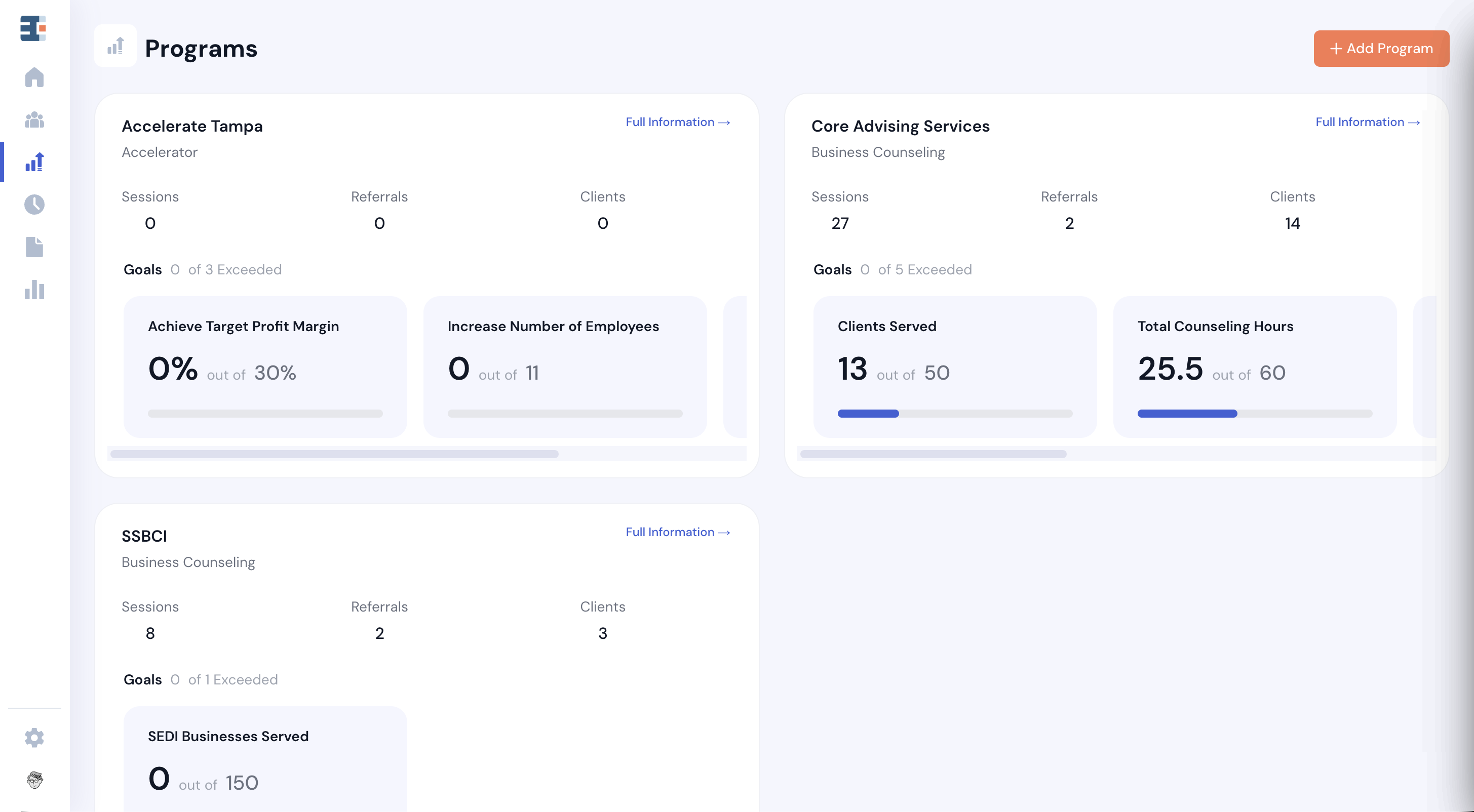
Properties are the vocabulary of your hub. A property has to exist before a form question can map to it, before a program goal can filter on it, before it can appear as a column on a list view, and before it can show up on a client's Overview tab. When someone on your team says they can't find a field anywhere in Catalyzer, the answer is usually that the property was never created.
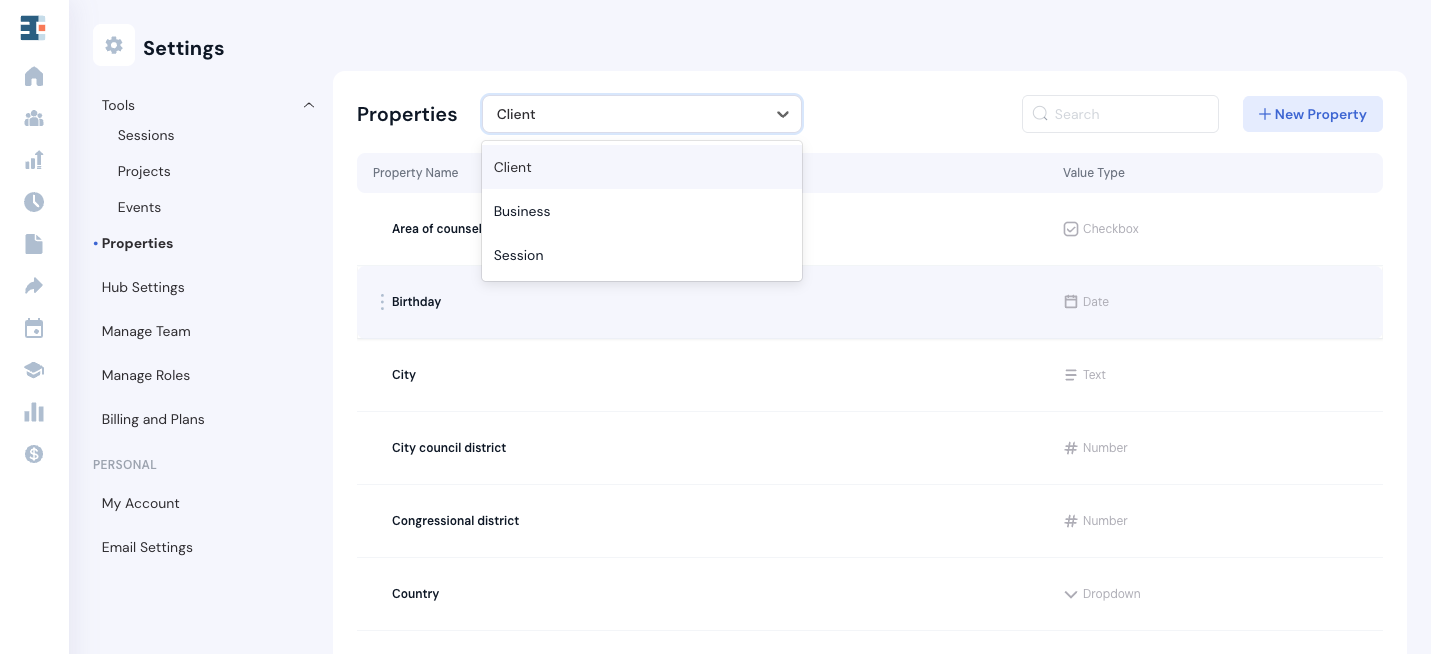
You'll find this screen at Settings → Properties.
Properties Exist for Three Objects
Most people know Catalyzer has client properties and business properties. There is a third.
- Client properties describe the person. They stay true regardless of which business you're discussing.
- Business properties describe the venture. They can differ between two businesses owned by the same client.
- Session properties describe the service interaction itself. They appear as custom fields when you log a session.
Choosing Between Client and Business
The test from Clients and Businesses is worth repeating here, because this is the screen where the decision actually gets made, and it is expensive to get wrong. Ask yourself: "If this client had two businesses, would this information always be true?"
A client's preferred language stays the same no matter how many ventures they run. That's a client property. Annual revenue is different for each venture. That's a business property.
Session Properties
Session properties are the answer to a question the knowledge base has never covered: how do I add a custom field to a session? You create it here, on the Session object, and it appears on the session logging screen alongside the standard fields.
You might use a session property to capture the topic area of the advising, the referral source that brought the client in that day, or whether the meeting happened in person or virtually.
Session properties support every field type except File Upload. Files belong to the client record rather than to a single interaction.
Property Names Are Unique Per Object
Two properties on the same object cannot share a name. Catalyzer rejects the second one with "Property name cannot be the same as another [client or business / session] property."
Creating a Property
- Go to Settings → Properties.
- Choose the object the property belongs to.
- Click to create a new property.
- Enter a Property Name.
- Choose a Field Type.
- Fill in any settings the field type requires.
- Save.
Choosing a Field Type
Catalyzer offers Text, Number, Dollar/Finance, Email, Phone Number, Website, Multiple Choice, Checkbox, Dropdown, Multi Select, Rating Scale, File Upload, and Signature.
Several of these carry validation, and the specific type matters more than it first appears. A phone number stored as Text can be entered eleven different ways by eleven different advisors. Stored as Phone Number, it has to be a 10-digit phone number. Catalyzer describes each validated type as you select it:
- Dollar/Finance is a validated USD currency field.
- Email is a validated email address field.
- Phone Number accepts any 10-digit phone number.
- Website requires a valid website URL.
- Multi Select is a set of choices where the user may select multiple options.
The reason to care is what happens downstream. A validated field filters, sorts, and exports cleanly. A Text field holding "(813) 555-0142", "813.555.0142", and "8135550142" holds three different values as far as any report is concerned.
Settings by Field Type
- Choice types (Multiple Choice, Checkbox, Dropdown, Multi Select) require a Values list, which you add options to and remove options from. Dropdown also offers Allow multiple selections.
- Rating Scale asks for Start At, End At, Left Label (Low), and Right Label (High).
- Signature asks for Signature Text and Agreement Text.
Properties Catalyzer Calculates for You
Some properties are calculated by the system from records you've already entered, and are read-only everywhere in the product. The employment figures are the clearest example: they're derived from what has been recorded rather than typed in, so they don't appear in the editable property list at all.
What Is a Milestone?
A milestone is a business property that keeps its history. A standard property holds one value, and each update overwrites the last. A milestone stores each update with a date, so the value can be measured over time.
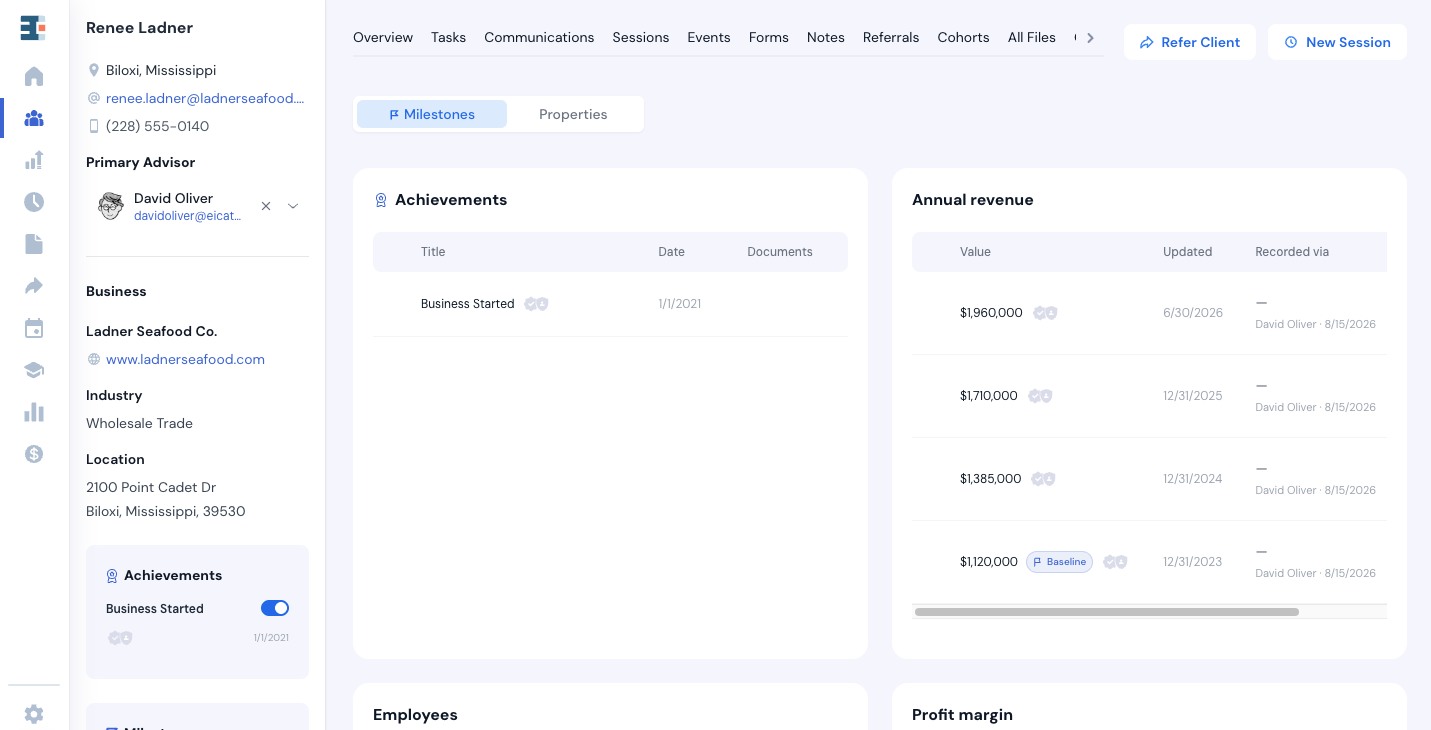
You might use milestones to track annual revenue, number of employees, or capital raised. On the client record, a milestone shows its latest value and the date it was recorded. The full history lives on the business's Milestones tab.
Milestone values also carry a baseline, which is the earliest recorded entry and the starting point for measuring change. Nobody sets the baseline by hand. The earliest record wins, because the point of a milestone is to show what actually happened rather than what someone decided the starting point should be. The Clients and Businesses article covers how baselines are used in reporting.
To make a property a milestone, check the Milestone Property box when you create it.
What Is an Achievement?
An achievement is the one-time version of a milestone. It records that something happened and when, rather than a value that changes.
You might use achievements to track that a business was registered, that a first hire was made, that a license was obtained, or that a business plan was completed. Danielle's Vegan Bakery registered as an LLC in March and hired her first employee in July. Those are two achievements, each with its own date.
Here is the part that surprises people: there is no achievement setting. When the field type is Yes/No, the same checkbox on the creation panel is labeled Achievement Property instead of Milestone Property, and carries a different icon. Choosing the field type is what decides which one you get. Anyone searching Settings for an achievements control will not find one, because it doesn't exist as a separate feature.
Milestones and Achievements Compared
The two behave differently in several places in the product. Taken one difference at a time:
- Field type. A milestone is Number or Dollar/Finance. An achievement is Yes/No.
- What it records. A milestone records a value that updates over time. An achievement records that something happened, and when.
- Shape of the data. A milestone is a series of dated entries. An achievement is one flag plus an occurrence date.
- The question it answers. A milestone answers "How much, and is it growing?" An achievement answers "Have they done this yet?"
- Typical examples. Milestones: annual revenue, number of employees, capital raised. Achievements: business registered, first hire made, license obtained.
- On the client record. Each milestone gets its own card showing the latest value and date. Each achievement is a row inside one consolidated Achievements tile.
- Baseline. For a milestone, the earliest entry is the starting point for measuring change. For an achievement there is only one entry, so a baseline carries no meaning.
- On a form. A milestone appears as a standard number or currency question. An achievement appears as a Yes/No widget that reveals a date field once the answer is Yes.
A Yes/No Business Property Is Only an Achievement If You Flag It
This is the most common modeling mistake available on this screen. Yes/No business properties that you don't flag stay standard properties, and plenty of them should.
Woman-owned and Veteran-owned are Yes/No facts about a business. They describe what the business is, and the date they became true carries no reporting weight. Leave them unflagged.
The test: does the date it became true matter for reporting? If yes, it's an achievement. If the property just describes a characteristic of the business, it's a standard property.
Achievements Display as a Group
Each standard milestone gets its own card on the client record. Every recorded achievement is listed inside a single Achievements tile. This is why a hub with fifteen achievement properties doesn't end up with fifteen cards.
An Achievement You Haven't Recorded Is Invisible
If an achievement property exists but has never been recorded for a business, it produces no tile row and no card. Nothing appears at all.
This generates a predictable question: "I created the achievement, so why can't I see it on the client?" It appears once a value has been recorded for that business. Standard milestones behave differently here, so don't apply this expectation to them.
On a Form
An achievement renders as a Yes/No pair that reveals a date field once the answer is Yes, so the submission captures both the fact and the date it occurred. A standard Yes/No question renders as just the buttons, with no date. This is how most achievement data gets recorded in practice, since the business owner is the one who knows the date.
Rules for Milestones and Achievements
Milestones are business properties only. The checkbox does not appear on client or session properties. If someone on your team wants to track a client-level value over time, the answer today is that Catalyzer cannot do it.
Only three field types are eligible. The checkbox stays disabled for everything else, with the tooltip "Milestone property is only available for Number, Dollar/Finance or Yes/No." Number and Dollar/Finance produce milestones. Yes/No produces an achievement.
💡 An important rule in Catalyzer: the milestone decision is permanent. The Milestone Property and Achievement Property checkbox can only be set when a property is created. It's locked on the edit form, because switching it off would delete the stored history. If you create Annual Revenue as a standard number property and decide next year that you want a trend, you'll have to create a new property and re-enter the history by hand. Decide up front whether you'll ever want to see the value change over time.
Verifying Milestone Data
Milestone data is what your hub reports to funders. Verification is how you show that a number came from somewhere defensible rather than being typed in from memory.
Every Value Carries Two Verification States
The badge on a milestone value shows both:
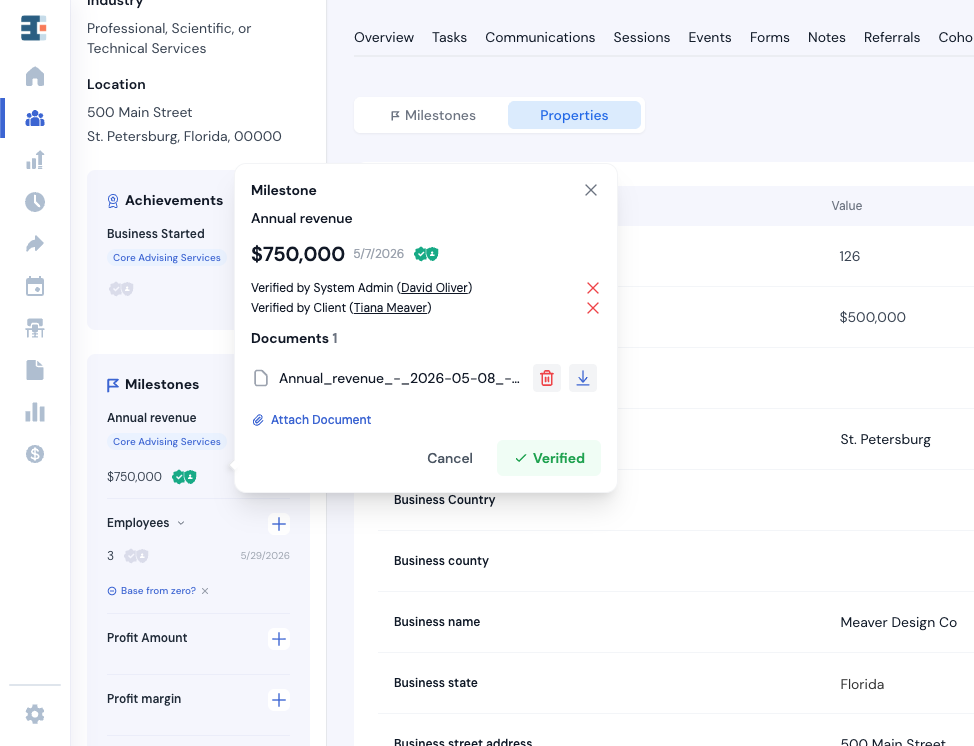
- Verified by a Catalyzer user. A staff member has confirmed the figure. Catalyzer records who and when.
- Verified by client. The business owner has confirmed it themselves. Catalyzer records who and when.
Until each one happens, the badge reads "Not yet verified by a Catalyzer user" and "Not yet verified by client." Both, one, or neither can be true of any given value.
The model is dual because the two carry different weight. A number your counselor believes and a number the business owner has personally attested to are different levels of evidence, and a funder may care which one you have.
Verification attaches to a value, not to a property. Each dated entry in a milestone's history is verified on its own. Verifying Blue River Brewing's 2025 revenue says nothing about their 2026 revenue.
Requesting Verification from a Business Owner
When you add or edit a milestone value, you'll see Request verification from Business Owner.
- The owner is emailed a link to a verification page. They do not need a Catalyzer login to use it.
- The page presents the figures with Approve or No change for each, under the header "Please verify information." Where relevant, it shows the employee breakdown of Full-Time, Part-Time, and total Employees.
- Approving stamps the client-verified state with their name and the date, and the page confirms with "Milestones verified."
You can also copy the verification link and share it directly rather than relying on the email. This is useful when the owner is already on the phone with you.
Verification can be requested in a batch. Several milestones can go out for confirmation in one request rather than one email per figure, which is the practical way to run an annual data refresh across your portfolio.
Requesting verification and receiving it are tracked separately. Catalyzer records who asked and when, so a pending request that nobody has acted on is a visible state rather than a silent one.
The Signed Record
💡 Catalyzer creates the audit document for you. When a client submits their verification, Catalyzer generates a signed PDF record and files it against that milestone automatically, one record per milestone verified. Nobody has to produce, download, or upload anything.
This is the artifact you hand a funder or an auditor. The other verification states are metadata; this is evidence.
The record contains:
- The header "Milestone Verification Record"
- The hub and network it came from, the Business, the Client, and who Requested the verification
- What was verified: the label, the value, and a supporting line
- The attestation the client agreed to, reproduced from the page they signed: "By clicking approve, you verify that the data described above is accurate and attributable to assistance provided by the [organization]."
- The electronic signature statement, "I agree that my electronic signature is the legal equivalent of my manual signature," along with who signed and the date and time in UTC
- A Verification ID and Request ID for audit
- A footer noting that the record was generated automatically when the client submitted the verification
You'll find it in two places: the verification popover for that milestone value, and the client's All Files tab. The file is named for the milestone and both dates, as in "Total capital infusion - 2026-03-31 - signed 2026-08-13.pdf", so it identifies itself in a funder's inbox or a shared drive without any context around it.
The record is produced on both paths, whether the owner used the emailed batch link or the single link your counselor shared.
One subtlety worth knowing. Where a milestone has a linked report change, such as a capital transaction or an employee change, the record states the change the client actually verified rather than the cumulative total it rolled into. A client who confirms a $50,000 investment gets a record for that $50,000, not for the $180,000 lifetime total. That is deliberate. A running total on an audit document reads as a second claim that nobody separately attested to.
Attaching Supporting Documents
Beyond the signed record, a milestone value can carry documents you attach yourself as evidence: the payroll report behind the headcount, the bank letter behind the capital raise.
Use Attach Document on the milestone value. Before anything is attached, the section reads "No documents attached." Documents can be downloaded and deleted, with a confirmation step on delete.
Only PDF and image files are accepted. Catalyzer rejects anything else with "Only PDF and image files (JPG, PNG, GIF) are allowed." A spreadsheet is exactly what most people reach for first, so export it to PDF before you attach it.
Verification and Your Reports
Verification is evidence rather than a gate. An unverified value still counts in program goals and reports exactly as a verified one does. Nothing in Catalyzer blocks a number because nobody has confirmed it.
If your hub wants to report only on verified figures, that's a process your team runs, not a rule the system enforces.
One point of confusion worth heading off: this has nothing to do with the Verify Event action in Events, which confirms that an event happened and that its attendance record is accurate. Same word, unrelated feature. See Events for that one.
Editing and Deleting Properties
Editing a property is more restricted than creating one, and the restrictions tighten as soon as real data exists. Once people have entered values, the shape of a property mostly stops being editable:
- Options that already hold values cannot be edited. The tooltip reads "This option has existing values and cannot be edited."
- Options that already hold values cannot be removed. The tooltip reads "Options with existing values cannot be removed."
- The last remaining option cannot be removed, whether or not it holds values.
- Default properties and default milestones that ship with your hub are locked, and their field type cannot be changed.
- The milestone and achievement checkbox is always locked after creation.
You may also open a property in view-only mode, where every control is disabled with "Cannot edit in view mode."
💡 Properties may only be deleted if they hold no data. To delete a property, any clients, businesses, or sessions holding data for it must have the value cleared.
Where Your Properties Show Up
A settings screen is worth this much attention because of what a property makes possible everywhere else. Once a property exists, it becomes available to:
- Forms. A question can be mapped to it, and the answer writes straight to the record. Once mapped, the question type locks to the property's type, and multi-option questions inherit the property's options. See Forms for how mapping works.
- Program goals. Properties are the filter criteria in the goal builder.
- List views. As a column.
- The client Overview tab. As a displayed field.
The reverse is the warning. An unmapped form question still collects an answer, and that answer still appears in the submission. It never becomes a property, which means it can't be filtered on, exported cleanly, or reported to a funder. The data is in Catalyzer without being usable, and you usually find out at the end of the grant period.
What's Next
Read Clients and Businesses for how properties appear on a record and how baselines factor into impact reporting, and Forms for mapping questions to the properties you've created here.