Clients and businesses are the backbone of Catalyzer's CRM capabilities. These two entities, or objects, depend on each other, and this article explains how.
Clients
In Catalyzer, a client is the person who is interacting with or receiving services from your organization.
(A note on terminology: Even though many entrepreneur support organizations consider their clients to be the businesses they serve, this isn’t fully reflected in practice.
Small business support is typically a person-first undertaking. We often serve founders when their businesses are still ideas—before paperwork is filed or websites exist. Even when services are delivered to businesses, they are almost always delivered through and for the benefit of the founder, whether that’s 1:1 counseling, cohort-based programming, workshops, or credit support. Founders may also operate more than one business over time.
For all these reasons, Catalyzer treats the client as the person or founder, and the business as the venture they are pursuing.)
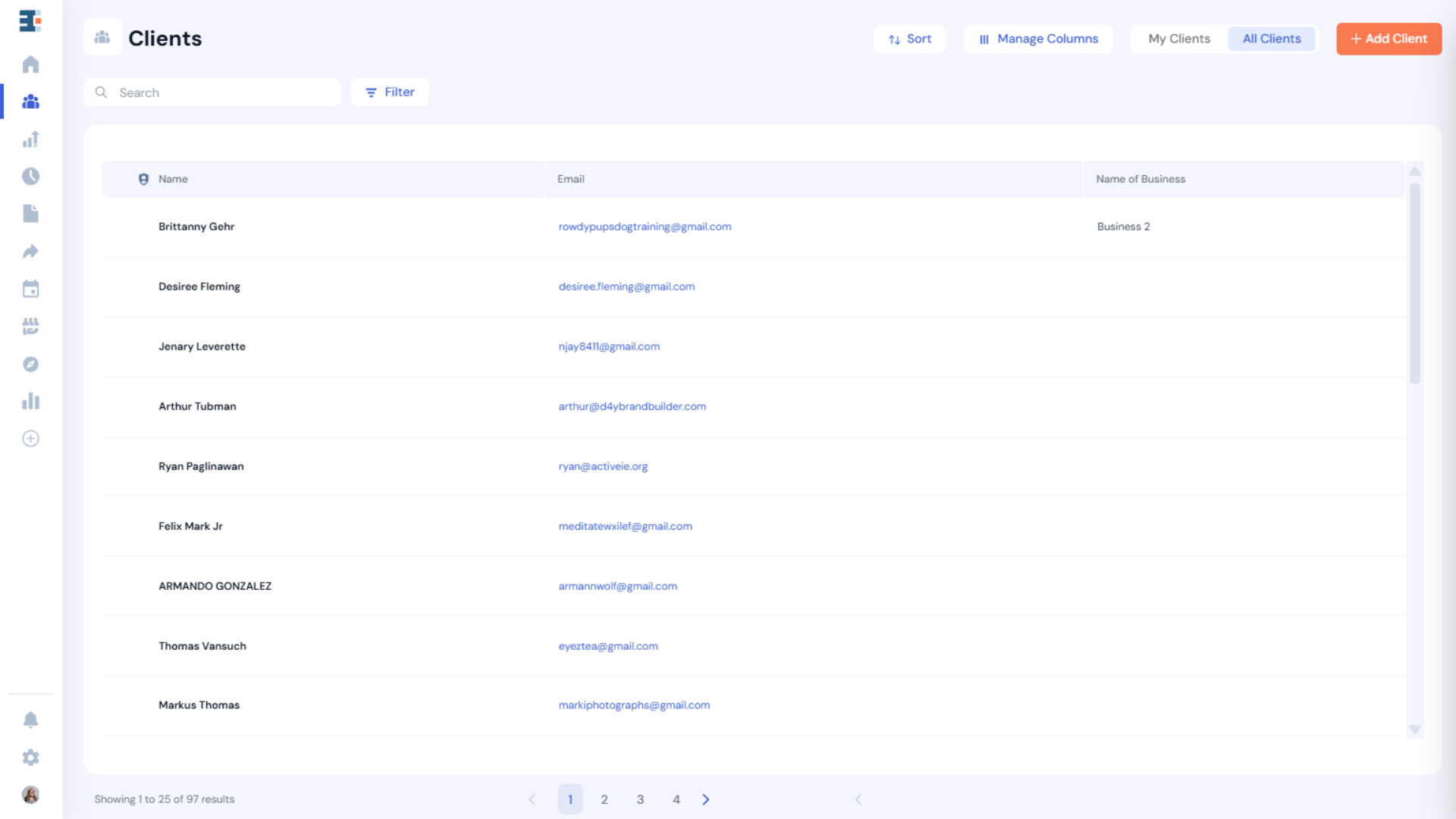
The way clients are stored in Catalyzer is similar to a large spreadsheet: each client record is one row. Any detail about the client—such as their:
- Name
- Gender
- Birthday
- Household income
- Consent to be surveyed
is stored in a column. These columns, or data fields about the client, are called properties.
Putting all of these terms together, you might hear something like:
“I went into Catalyzer and looked at Sam Johnson’s client record. I noticed that his phone number property was one digit off, so I corrected it.”
How to Create a New Client in Catalyzer
There are three ways a client can be created in Catalyzer.
Adding a Client Manually
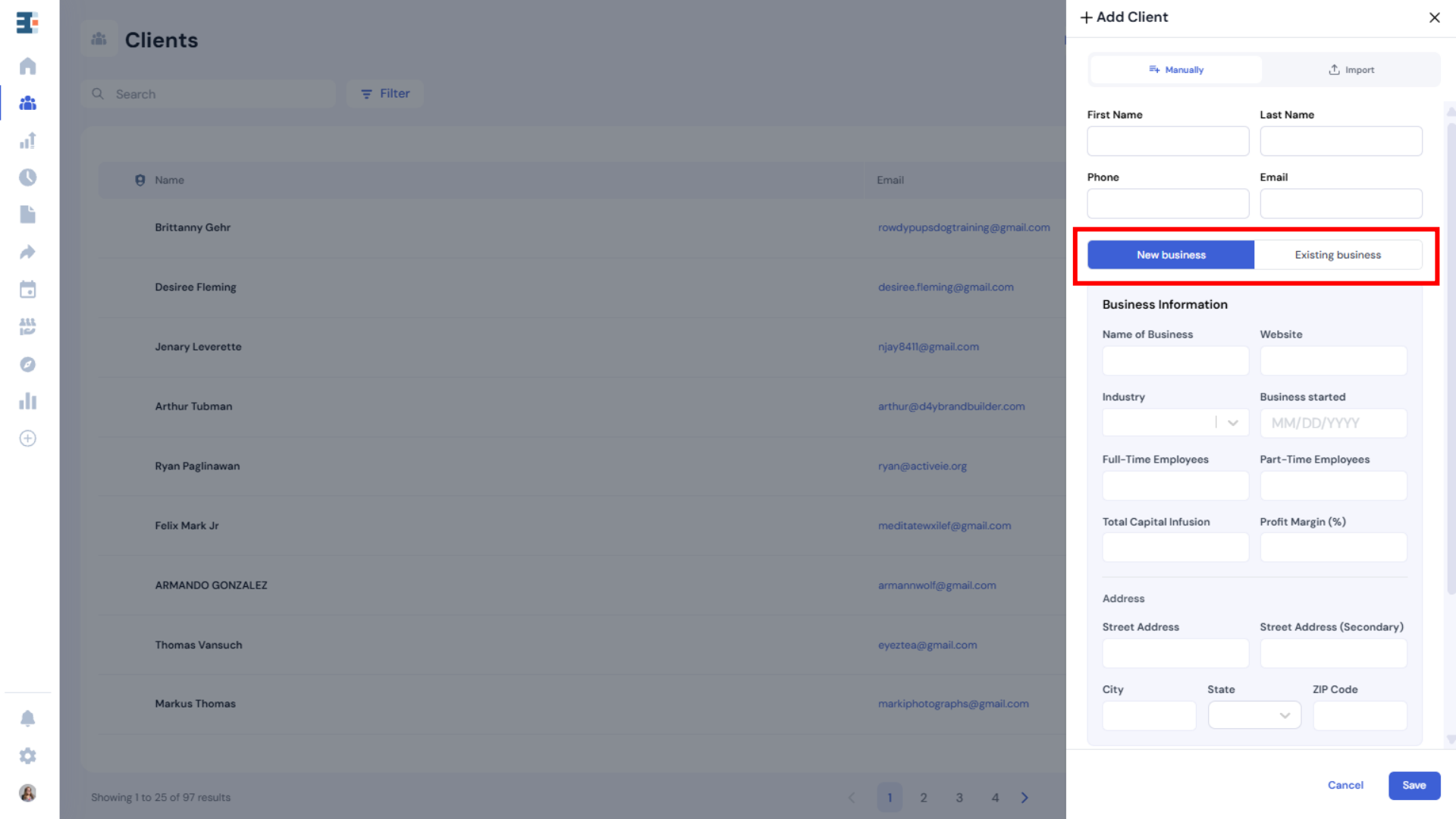
To create a client manually, click “Add Client” on the Clients List page.
You’ll see a number of properties you can enter about the client and their business, but email address is the only required field to create a client record. This is because email address is the identifying property for the client object.
Once you’ve entered the information you want to capture, you can also add details for up to five businesses associated with that client (more on businesses below), as well as a note. For each business, choose New business or Existing business. Existing business lets you search for and link a business that's already in your hub.
After saving, the new client will appear in both the My Clients tab and the All Clients tab. On a subhub with network access, the client tabs are My Clients, Hub Clients, and Network Clients.
Importing a List of Clients
To import a list of clients, see our article on best practices for importing clients into Catalyzer, which covers the process in more depth.
At a high level, you can import a CSV file by clicking “Add Client” on the Clients List page and navigating to the Import tab.
Creating a Client Through Form Submission
This is the most common way clients are created in a Catalyzer hub.
By default, forms will create a new client when a submission is received from an unrecognized email address. This behavior can be turned off in the form’s settings.
Any answers submitted to mapped form questions will automatically populate the corresponding client or business properties.
Some more advanced forms—such as applications—do not create clients immediately. In these cases, the submission must be accepted before the applicant becomes a client in your hub.
Businesses
The business object is distinct from—but tightly connected to—the client object.
In Catalyzer, businesses are housed within the client record. Any client can have up to five businesses.
Businesses have their own properties, such as:
- Business name
- Number of employees
- Annual revenue
- Industry
💡 Client vs Business Properties: When deciding where a piece of information belongs, ask yourself, “If this client had two businesses, would this information always be true no matter which business I’m talking about?" If the answer is yes (for example, gender or birthday), it’s a client property. If the answer could vary by business (for example, revenue, industry, or legal entity), it’s a business property.
How to Create a New Business in Catalyzer
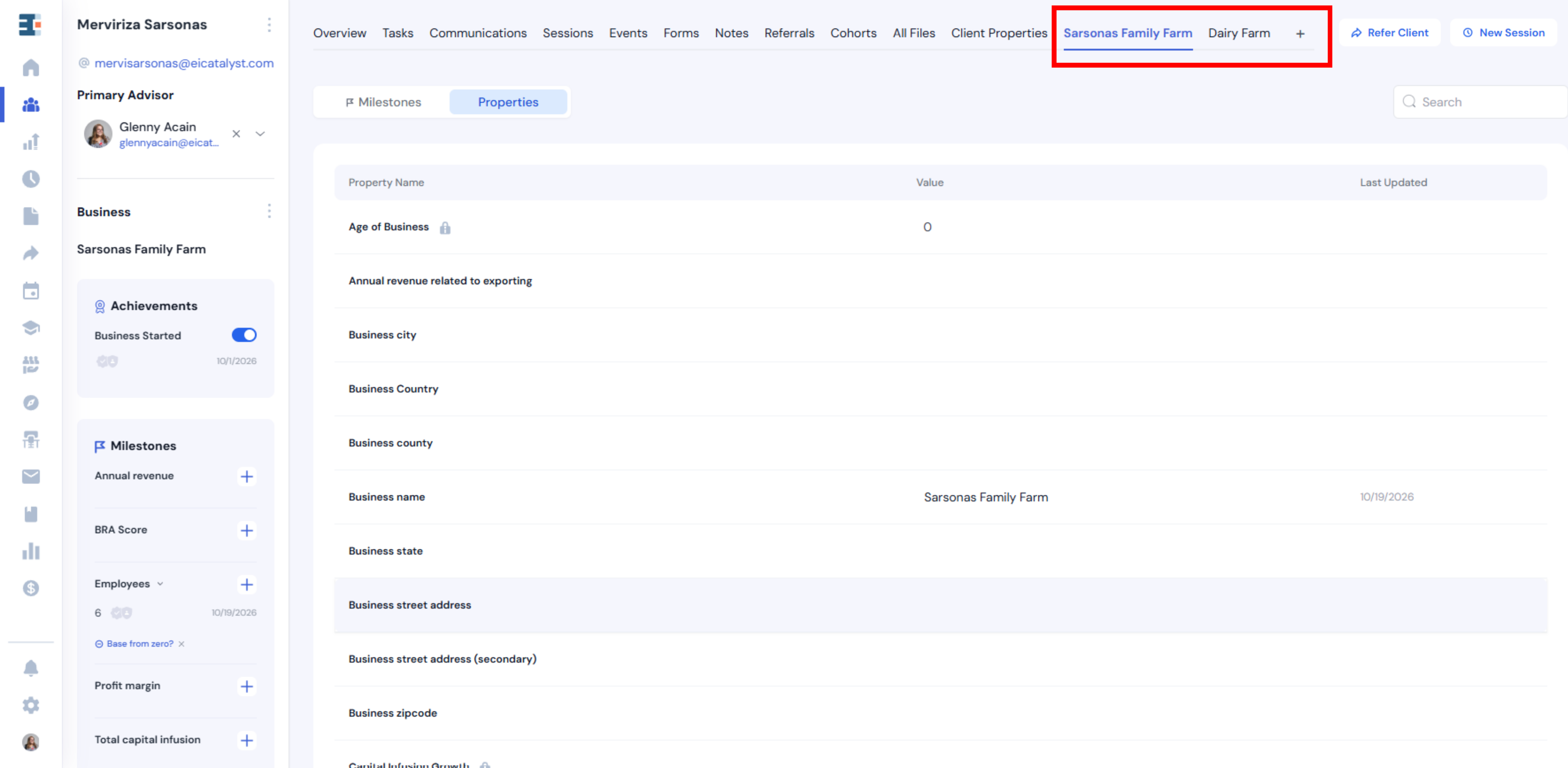
To create a business, first navigate to the client it belongs to. A business must always be associated with a client—you cannot create a standalone business record.
From the Clients List page, click the client’s row to open their Client Record Page.
At the top of the page, you’ll see tabs such as Sessions, Forms, and Referrals. At the end of this list is a “+” button. It appears while the client has fewer than five businesses and you can edit the client.
Click +, then choose New business or Existing business. Existing business lets you search for and link a business that's already in your hub.
For best data hygiene, be sure to enter at least a name for the business before saving. While the system allows unnamed businesses, it will default to a generic label like “Business 2.”
If the business does not yet have a formal name, that’s perfectly fine. You can use a descriptive placeholder such as “Danielle’s Vegan Bakery.”
How to Delete a Client Business in Catalyzer
If a business was added to a client record by mistake or is no longer needed, you can remove it from the client's record.
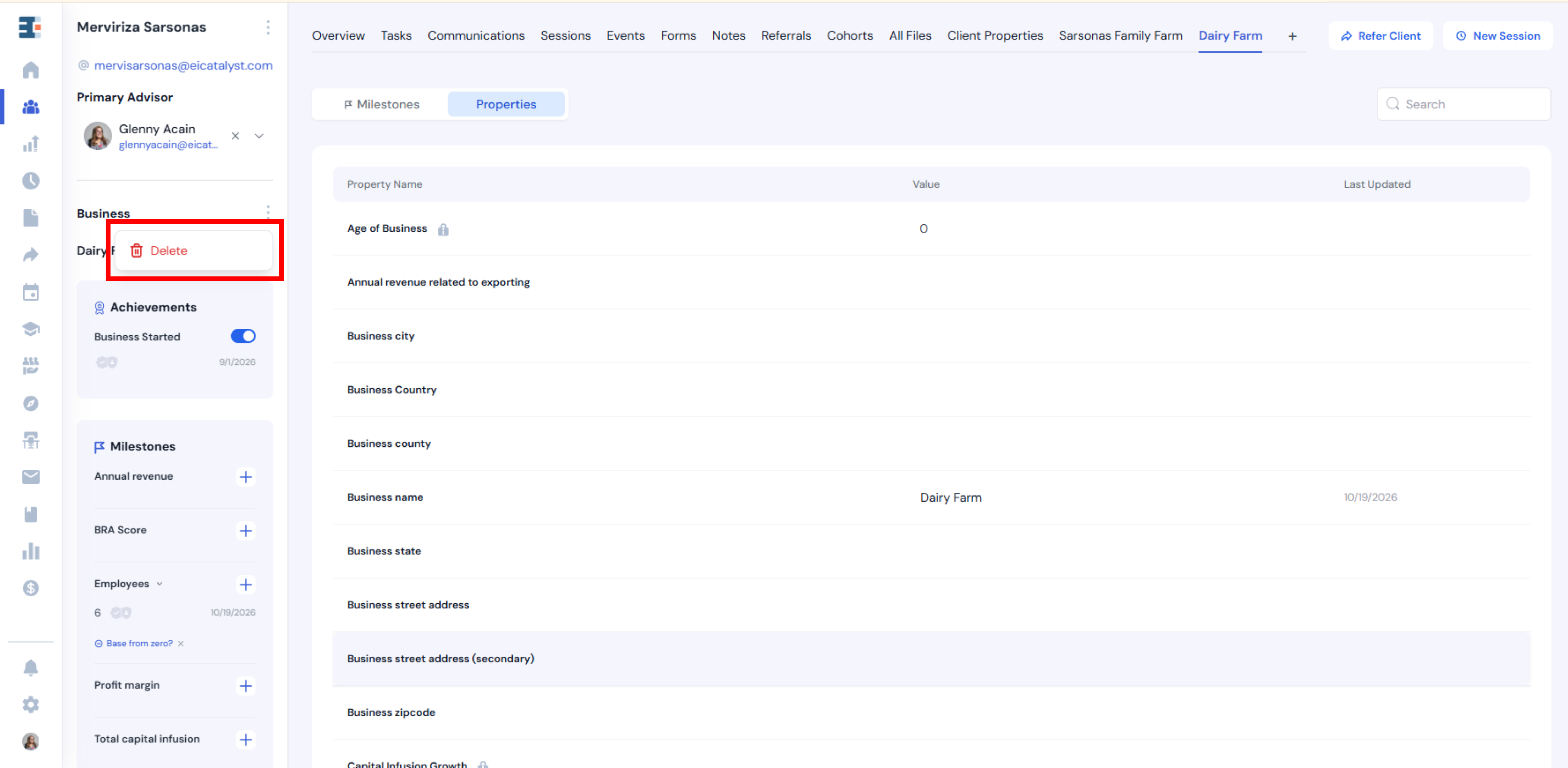
Open the client's record, locate the Businesses section near the end of the client overview, and select the business you want to remove.
Open the client's record and click the tab named after the business. In the left-hand panel, open the ⋯ menu to the right of the Business heading and select Delete. Read the confirmation, then click Delete.
How to Merge Duplicate Clients
Because email address is the identifying property for a client, one person can end up with two client records. For example, Danielle might apply to Accelerate Tampa from her personal email and later register for a workshop from her bakery's address. Each email creates its own client.
Merging combines the two records into one, so Danielle's full history sits on a single record.
Choosing Which Record to Keep
Start from the record you want to keep. In the merge window it's called the Surviving record. The other record is merged into it, then hidden.
The merged record keeps the surviving record's email address unless you choose the other one on the Client step. The address you don't choose is removed.
If you open the wrong record first, close the merge window and start again from the other one.
Merging Two Records
Click Merge.
- Open the record you want to keep.
- Open the client actions menu (⋮), either in the left-hand panel or on the client header on the Overview tab, and select Merge Client.
- Under Record to merge in, use Select a secondary record to find the duplicate. It's marked Will be merged away.
- On the Client step, resolve any conflicting properties.
- On the Businesses step, if it appears, decide which businesses to combine.
- Click Merge.
- Review the Confirm merge window, then click Accept.
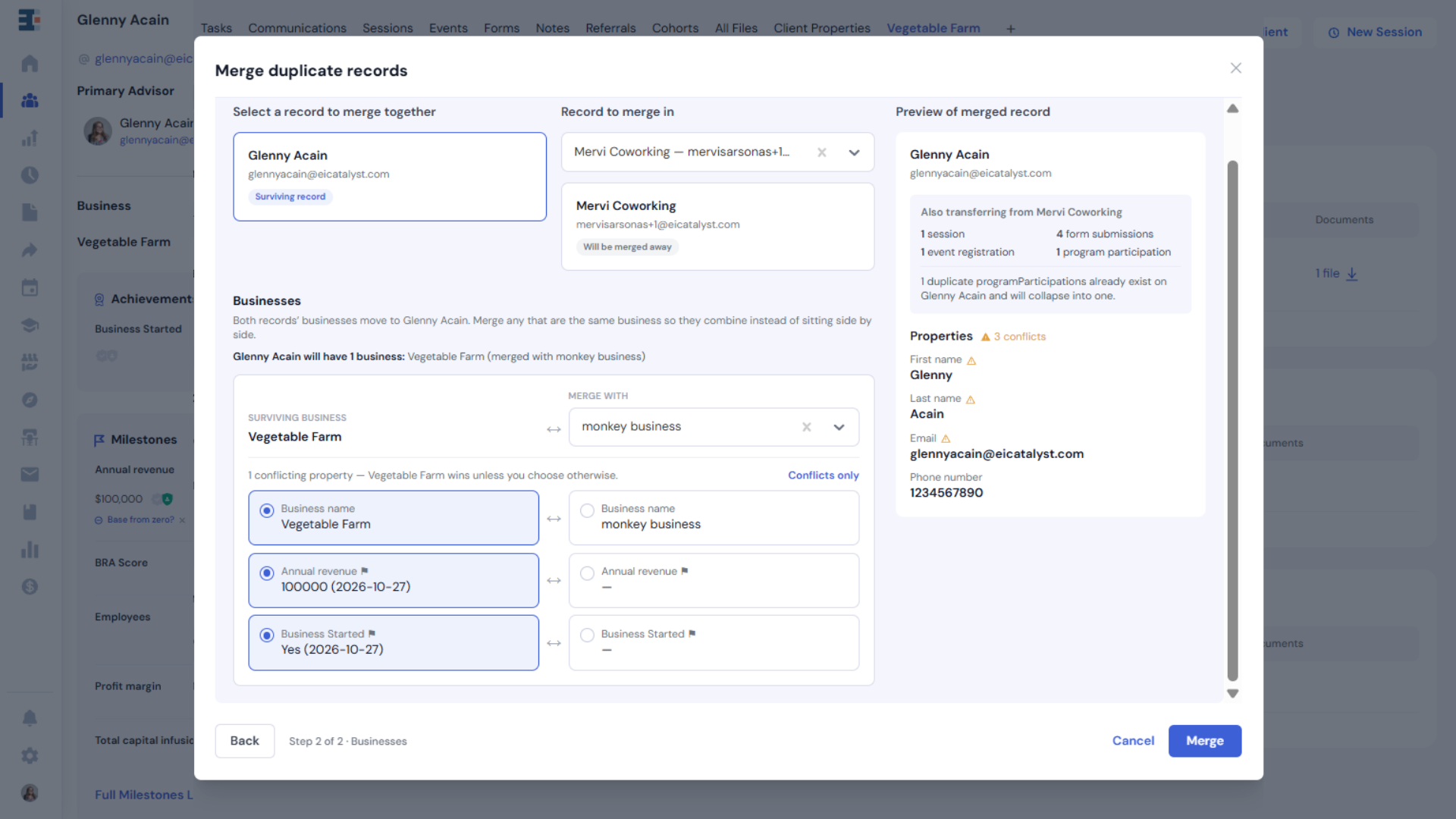
Resolving Conflicting Properties
Conflicting properties lists every property where the two records hold different values. The surviving record's value is selected by default, so click the other value wherever it's the right one. All Properties shows every property, and Conflicts only returns to the shorter list.
The panel on the right previews the merged record. Under Also transferring, it lists everything moving across from the other record: sessions, milestones, referrals, form submissions, files, notes, tasks, event registrations, and cohort memberships. The panel labels cohort memberships as program participations.
When both records are linked to the same thing, such as the same cohort, the merged record keeps one link. Notes, files, form submissions, and referrals always move across. If the person registered for one event under both email addresses, both registrations stay.
Combining Businesses
This step appears only when both records have businesses. Every business moves to the surviving record. If two of them are the same venture, such as two records for Danielle's Vegan Bakery, pair them so they combine. Leave a business on Don't merge to keep it separate.
Businesses you don't pair move across with their full history and verifications.
When you pair two businesses, you resolve their conflicting values the same way. Each milestone shows its latest value, date, and number of entries, and you can expand it to see the entries.
Choose the side whose milestone history to keep. The other side's entries are removed from the merged business, along with any client verifications on them. Their signed records still stay in the client's All Files tab.
If only one side has entries for a milestone, those are kept automatically. The employment figures move together as one choice.
A merge can leave a client with more than five businesses, because the limit only applies when you add a business. Until the count drops below five, the + button won't appear.
💡 An important rule in Catalyzer: a merge is permanent. You can't undo it, and values you didn't choose don't come back. Check both records and their milestone histories before you click Accept.
By default, System Admins and Admins can merge clients. Advisors can't unless the Merge permission is added to their role under Settings → Manage Roles.
Tip
The ⋯ menu appears only when the client has more than one business and you can edit the client. If other people are linked to the same business, this removes it from this client only.
If You Don't See the Delete Option
Your ability to delete or modify records may depend on your user role and permissions. If the Delete option isn't available, contact your system admin rather than creating a duplicate business or making unnecessary changes.
💡 Important: Deleting a business is a data change. Before deleting, make sure you have selected the correct client and business. If you're unsure whether a business should be deleted, contact your system admin before proceeding.
The Client Record Page
The Client Record Page is the central hub for all information related to an individual client and their businesses.
Properties Panel
The left-hand panel contains the client’s core properties, including contact information, business details, and their most recent milestones. The panel is hidden on the Overview tab, which shows the same details in its own cards. Open any other tab to see it.
Milestones
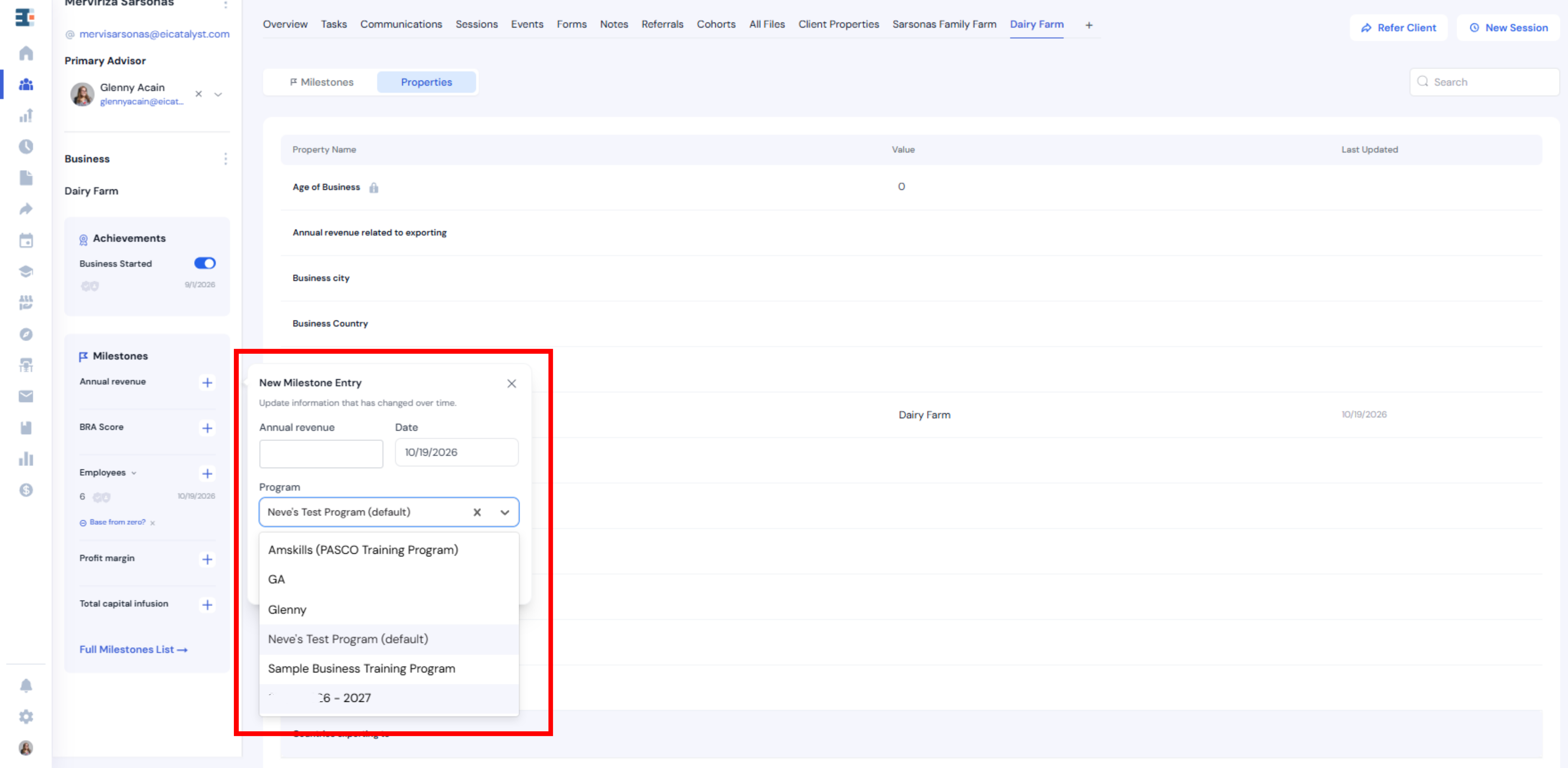
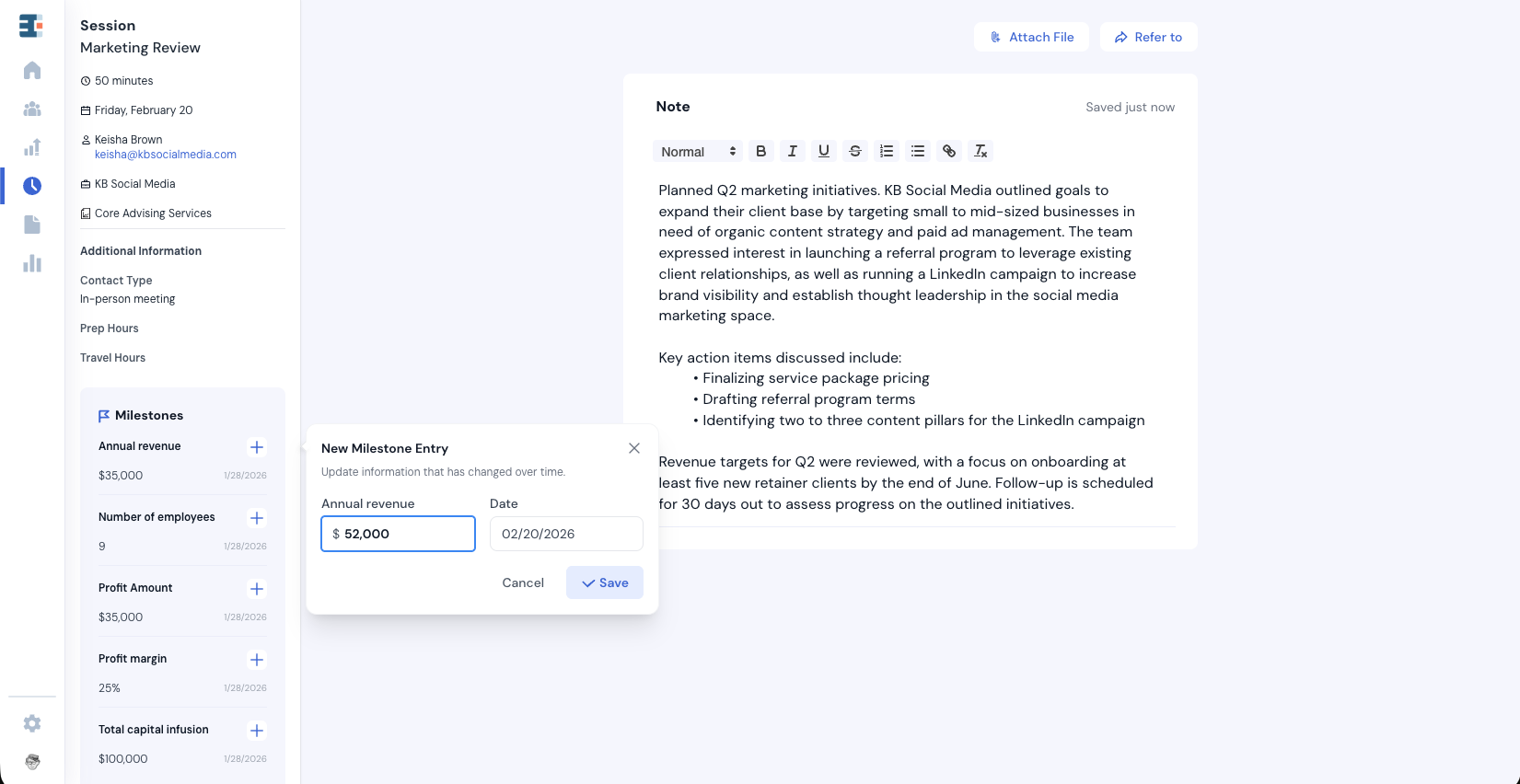
Milestones are special business properties that track values over time. Each update is stored with an associated date, allowing progress to be measured longitudinally. The most recent value and date are displayed by default.
The earliest recorded entry is the baseline and is tagged Baseline. The baseline is the starting point that later values are measured against. If it already reflects growth, use Base from zero in that entry's ⋯ menu to add a zero starting point. On the Overview timeline, the baseline entry displays as "Baseline" rather than showing a change figure, since there is nothing before it to compare against.
Main Panel
The central panel is organized into tabs. You land on Overview; the remaining tabs hold the client's full history, from intake through ongoing engagement.
The tabs, in order, are Overview, Tasks, Communications, Sessions, Events, Forms, Notes, Referrals, AI Notebook, Cohorts, All Files, and Client Properties, followed by one tab per business. Events shows if you have events access. AI Notebook shows on hubs with AI turned on.
Overview
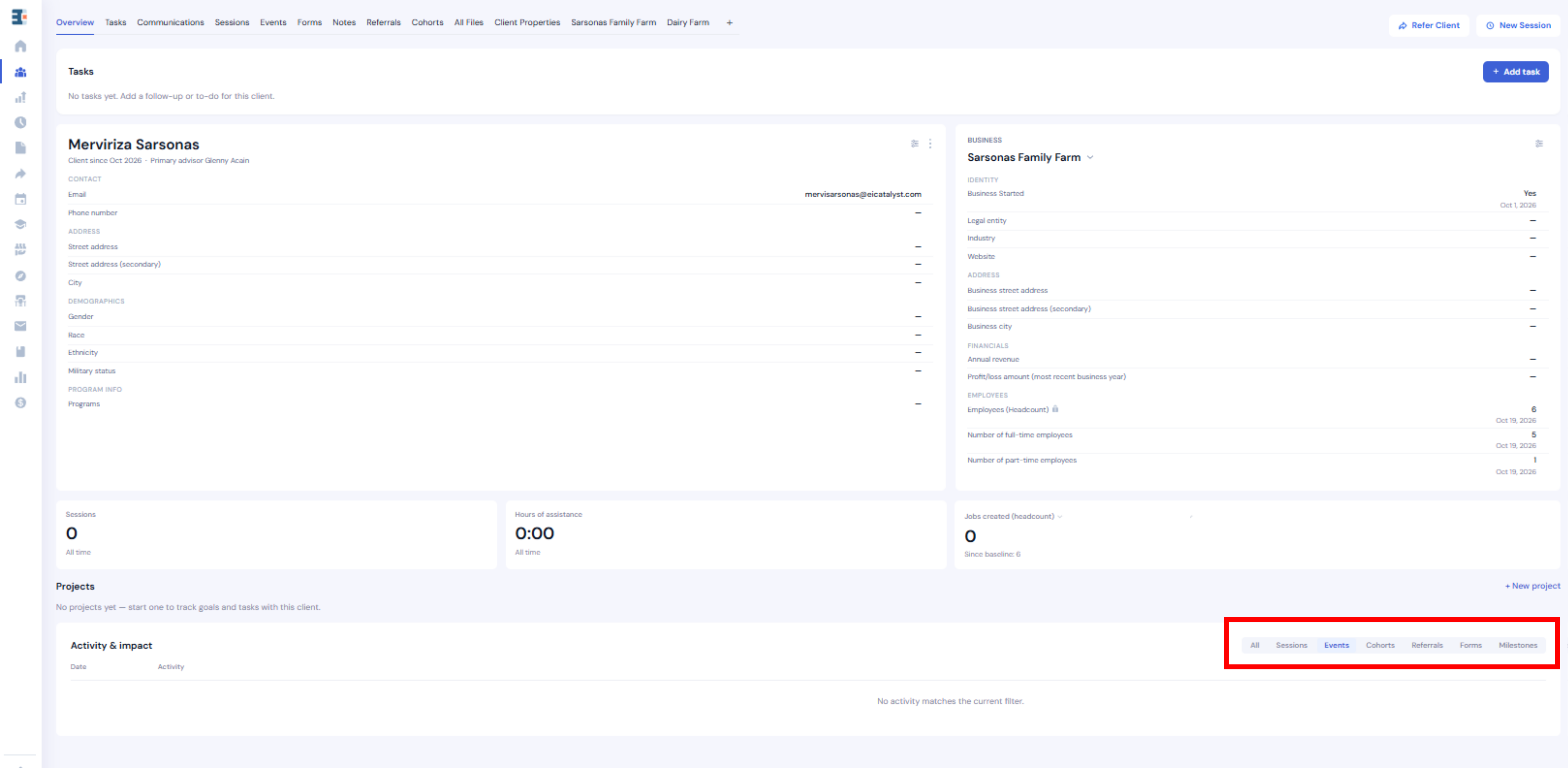
Opening a client record lands you on the Overview tab, which pulls the client's current state into one view:
- A stats row summarizing key figures
- An activity timeline
- A tasks widget showing open to-dos for this client
- A projects section
- An entity section with inline field editing and a business switcher for clients with more than one business
Start here to orient yourself before opening any specific tab.
Tasks
The Tasks tab lists to-dos scoped to this client.
Communications
The Communications tab shows the message history between your hub and the client.
Sessions
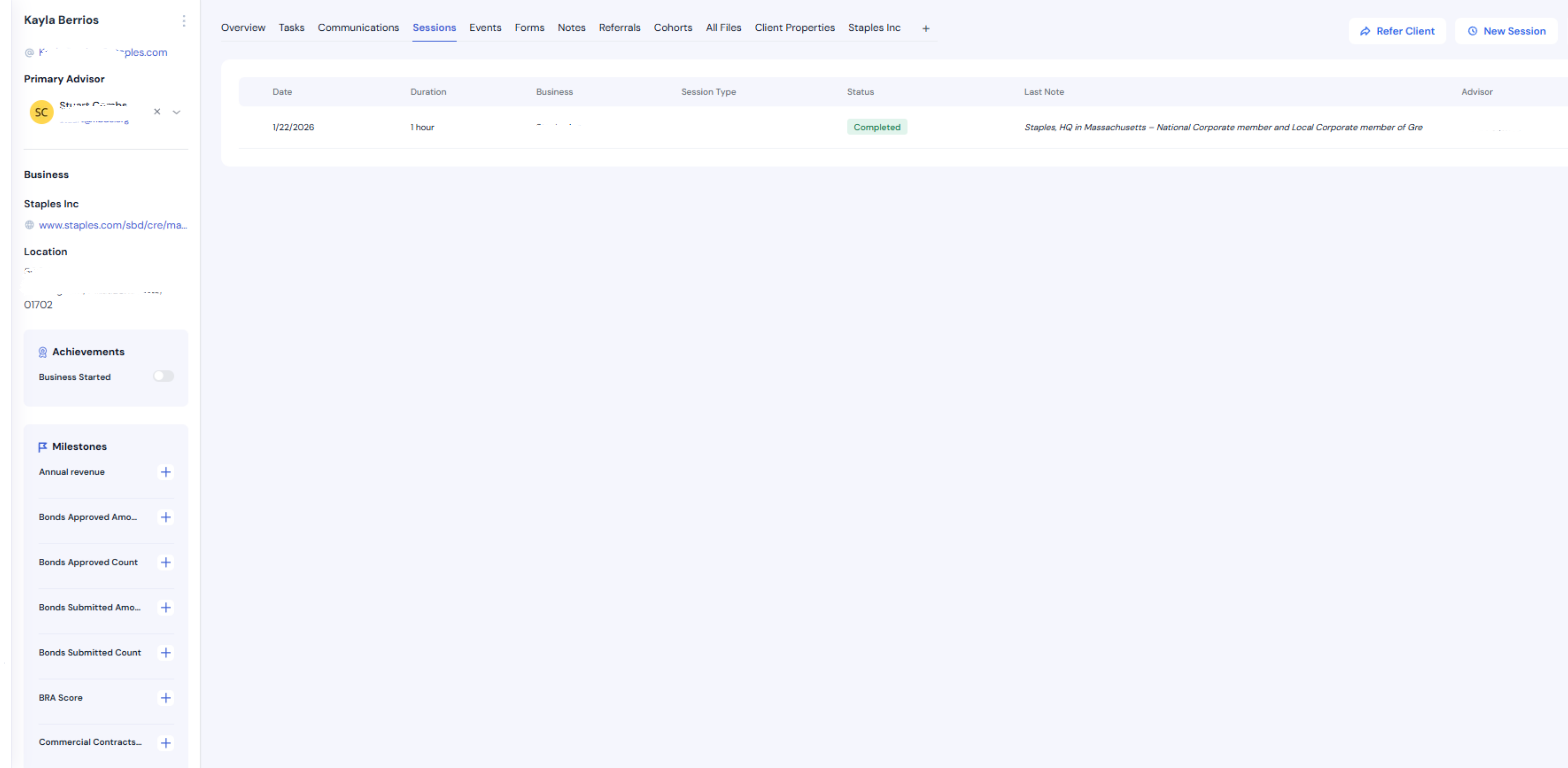
The Sessions table lists all past and upcoming sessions for the client, including date, time, status, and the most recent note. Selecting a session opens its full record.
Events
The Events tab appears only if you have events access.
Forms
The Forms table shows all form submissions made by the client. New submissions are marked until viewed.
Notes
All notes related to the client appear here, including notes created directly on the client page or within a session. Session notes link back to their originating session.
Referrals
This tab displays all referrals where the client is the referred party.
AI Notebook
The AI Notebook tab appears only on hubs with AI turned on.
Cohorts
The Cohorts tab shows every cohort the client is participating in.
All Files
All files associated with the client appear here, including uploads from sessions, referrals, forms, milestones, and direct uploads.
Click a file's title to open the Edit File panel, where you can preview it or change its Name and Description. Use the icons in the Action column to download or delete a file.
Client Properties
This tab shows all client properties and their current values. Most values can be updated at any time, though historical entries cannot be edited or deleted. Some properties are calculated: Catalyzer derives their values from other records, so they display as read-only. If a field won't accept input, this is why.
Business Properties
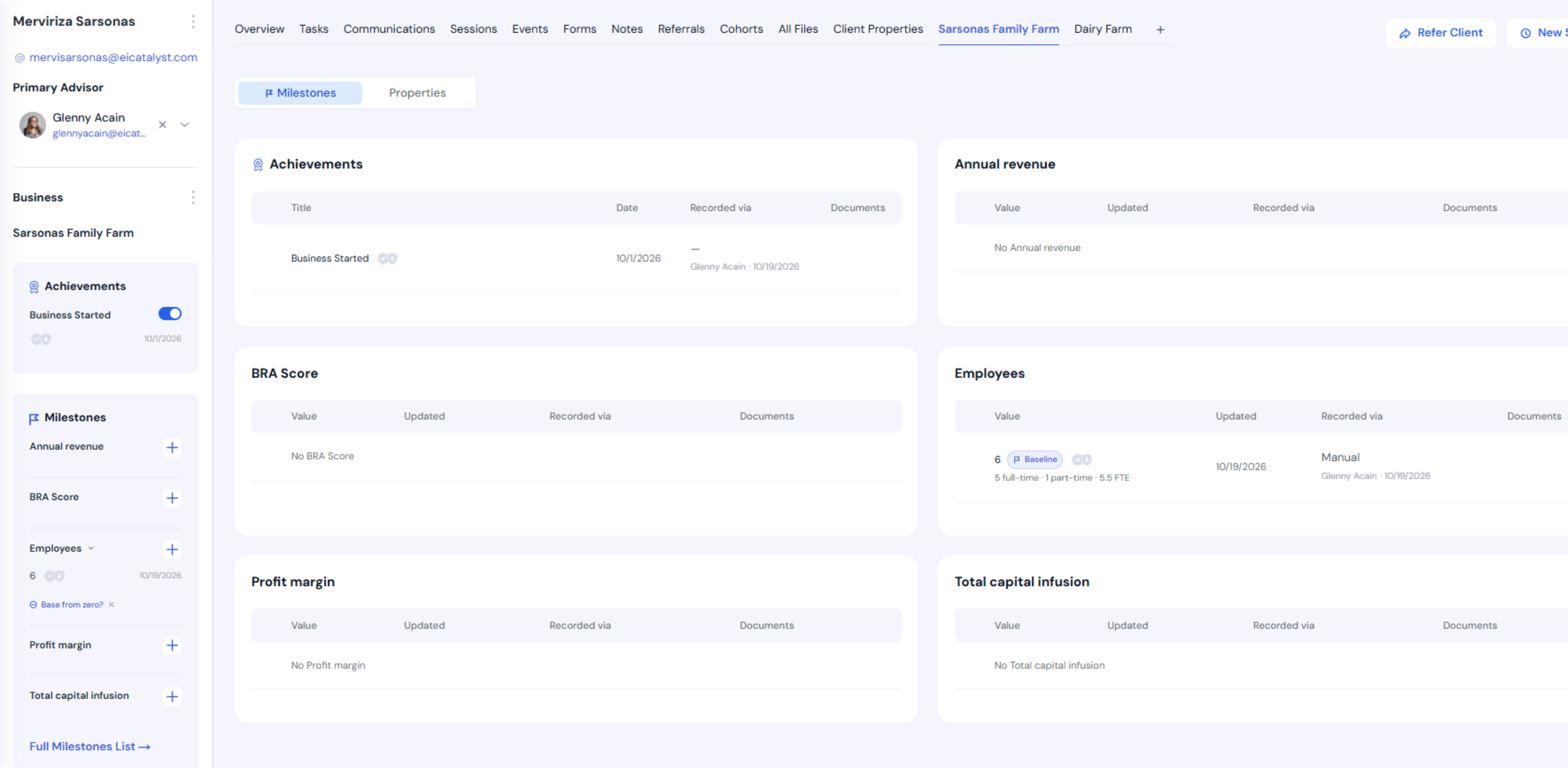
Each business has its own tab (named after the business) containing its properties and milestones. Standard properties can be updated, and milestones can be edited or deleted from the Milestones tab.