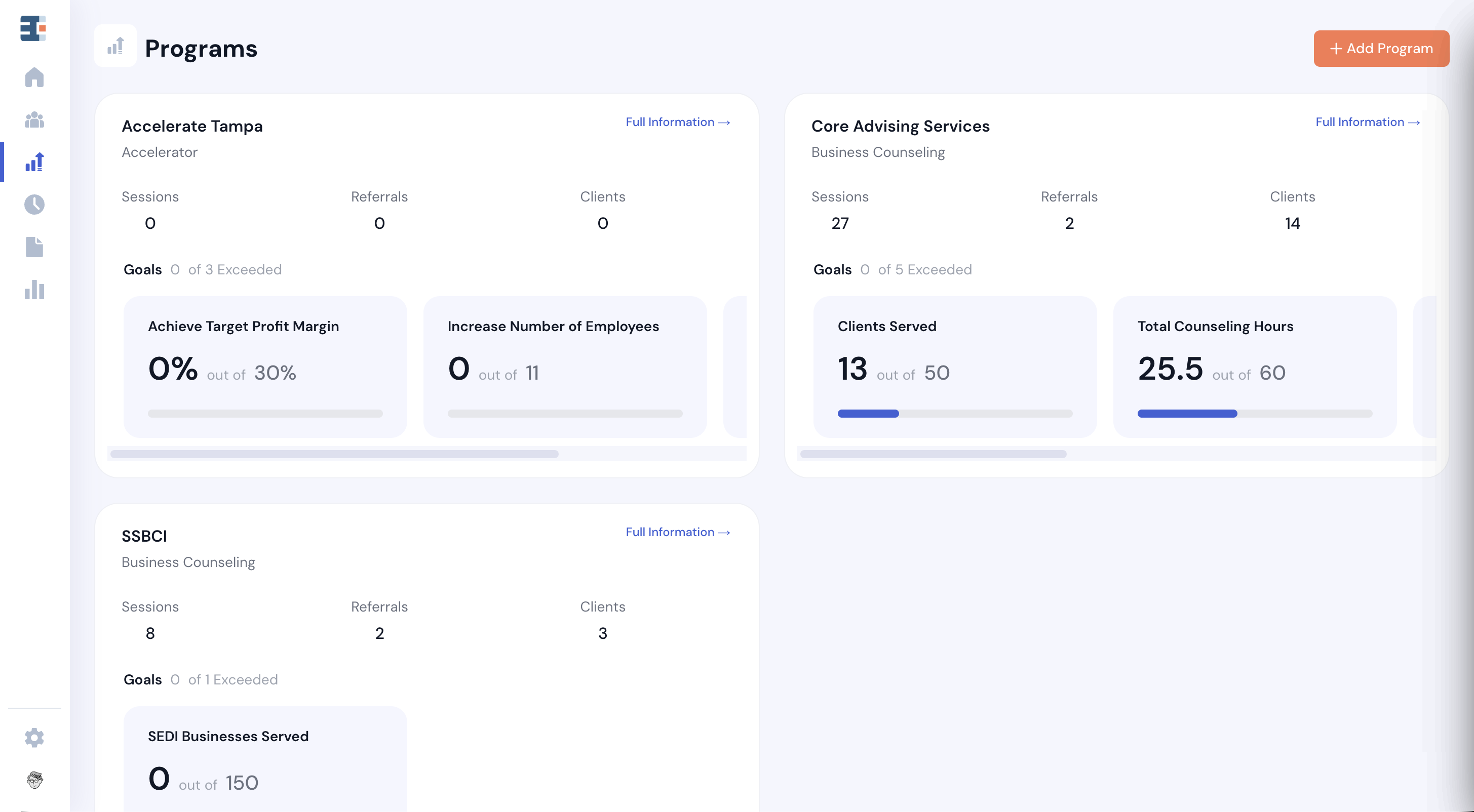
Events are a one-to-many service activity in Catalyzer, where multiple clients participate in a shared experience at a specific point in time.
You might use events to track:
- Workshops, webinars, and conferences
- Pitch competitions
- Office hours open to multiple attendees
- Partner-hosted community events
Like sessions, referrals, and cohorts, events are a service activity in Catalyzer. When a client attends an event associated with a program, they are considered served by that program.
The Event Calendar
When you navigate to the Events tool, you'll land on your hub's event calendar—a view of all published events in your hub.
The event calendar can be displayed in three views:
- Card view — a visual grid of event cards
- List view — a sortable table of events
- Calendar view — a traditional month-grid calendar
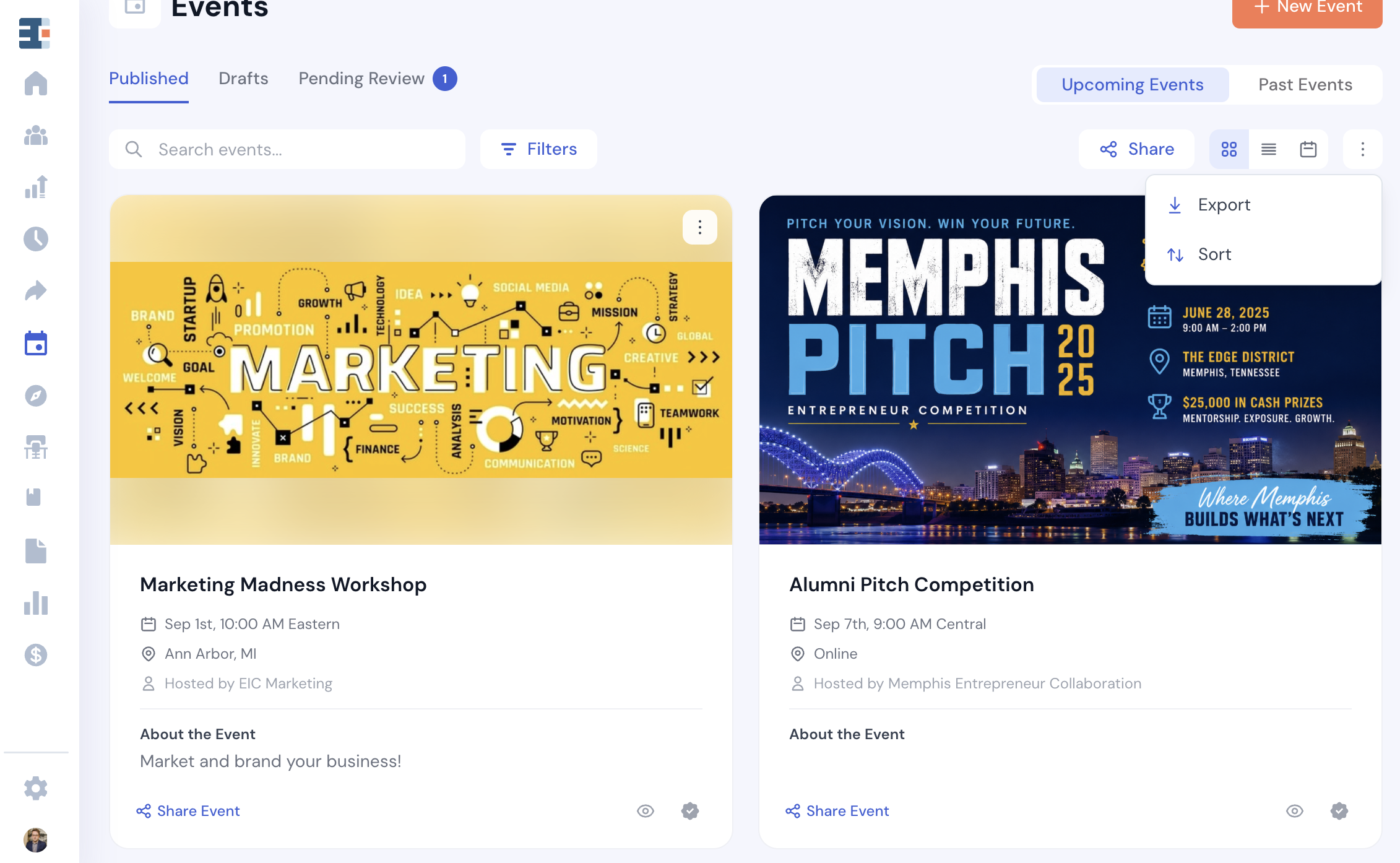
Past and Upcoming Events
In the Card and List views, a toggle lets you switch between upcoming events (the default) and past events. This toggle isn't available in Calendar view, since you can simply navigate to any date on the calendar.
Drafted Events
Events that have been started but not yet published are saved as drafts. Navigate to Drafts to resume editing any of them. To delete a draft, click the three-dot menu on its card and select Delete.
Sorting, Filtering, and Managing Columns
Sorting
In Card view, click the three-dot menu in the top right and select Sort to open a sort panel. You can sort by:
- Event date
- Event publish date
- Event name
- Number of registrants
In List view, sorting works the same way—and you can also click any column header to sort by that column directly.
Managing Columns
In List view, click the three-dot menu and select Manage Columns to control what's displayed in the table. Default columns include event name, description, start date, start time, and total revenue. Optional columns include end date, end time, location, number of registrations, and number of attendees (available for past events only).
Any event filters configured for your hub can also be added as columns. See Event Settings & Filters for more on that.
Filtering
Click the Filters button next to the search bar to filter events across any view. Available filters include start/end date, start/end time, location type (in-person, online, or hybrid), visibility (public or unlisted), verified status, number of guests, and any custom event filters your hub has configured.
Sharing the Event Calendar
Your full list of upcoming events can be shared publicly in two ways. Click the Share button at the top of the events calendar page to access both options.
Public URL — Copy the link to your hub's public events calendar and share it wherever you'd like clients to discover upcoming events.
Code Embed — Paste the embed code directly into the body of your website to display the calendar inline.
Individual events can also be shared from their card using Share Event, which opens the same share modal.
The Public Event Calendar
The public-facing version of your calendar displays the same upcoming events in card and calendar view. A few things to note:
- There is no list view on the public calendar.
- Drafted events and unlisted events are never shown on the public calendar (more on unlisted events below).
- The public calendar does not include any internal controls, such as the ability to verify or unlist events.
- Filters on the public calendar are limited to location type and any custom event filters configured in your hub's settings.
Creating an Event
To create a new event, click New Event in the top right corner of the events calendar page. This opens a multi-step event creation flow. If you exit at any point without publishing, you'll be prompted to save the event to drafts.
Basic Information
Start by entering the core details for your event. Required fields are:
- Title
- Start date and start time
- End time
You can also set an end date (if the event spans multiple days), a maximum capacity, a timezone (defaults to your hub's timezone), and a location. Location options include in-person (with a specific address), online (with a virtual meeting link), or hybrid (with both). If you're in a superhub, you'll also select which subhub the event belongs to.
If your event recurs, you can configure it on a recurring schedule here. Note that the event's location—including any virtual meeting links—will be inherited by all instances of a recurring event.
Details
Next, add supporting information about the event:
- Organizer/host
- A rich-text description (supports images, video, headings, and lists)
- A primary image (used on the event card, the public landing page, and in default event emails)
- Program association
- Filter tags (such as topic, industry, and event type—see Event Settings & Filters)
- Whether the event is unlisted
💡 What does "unlisted" mean? An unlisted event does not appear on the public calendar but can still be accessed via its direct URL. This is useful for events intended for a specific audience—you can share the link directly without the event showing up publicly.
Registration Method
Also on the Details page, you'll choose how guests register for your event.
Collect registrations through Catalyzer (default) — guests register via a form you select. You'll be prompted to choose a Basic Form as the registration form. At minimum, the form must collect an email address.
Collect registrations outside Catalyzer — provide a link to an external registration page (such as Eventbrite or Luma). The Register button on the event landing page will redirect guests to that URL.
💡 If you choose to collect registrations outside Catalyzer, you will not be able to set up tickets, send event emails, or manage guests within your hub.
Tickets and Pricing
This step is entirely optional. If you skip it, the event is treated as free, with no ticket restrictions beyond the maximum capacity you set.
To create a ticket type, click New Ticket Type and configure its name, price, and quantity. You can create multiple ticket types for the same event.
Price. Enter a fixed price, or enable Allow guest to choose price and set a Minimum Price. Guests then pay any amount at or above that minimum, which is useful for sliding-scale or pay-what-you-can events.
Quantity. Set a number of tickets available, or choose Unlimited.
Sales window. Each ticket type can carry its own Sales Start Date and Sales End Date. Use these for early bird pricing that closes on its own, or day-of door tickets that only go on sale when the event begins.
Promo code. A ticket type can be gated behind a promo code. A gated ticket stays hidden on the public event page until the code is applied at checkout, so only guests you've given the code to will ever see it. Use this for comp tickets or offers meant for a specific audience.
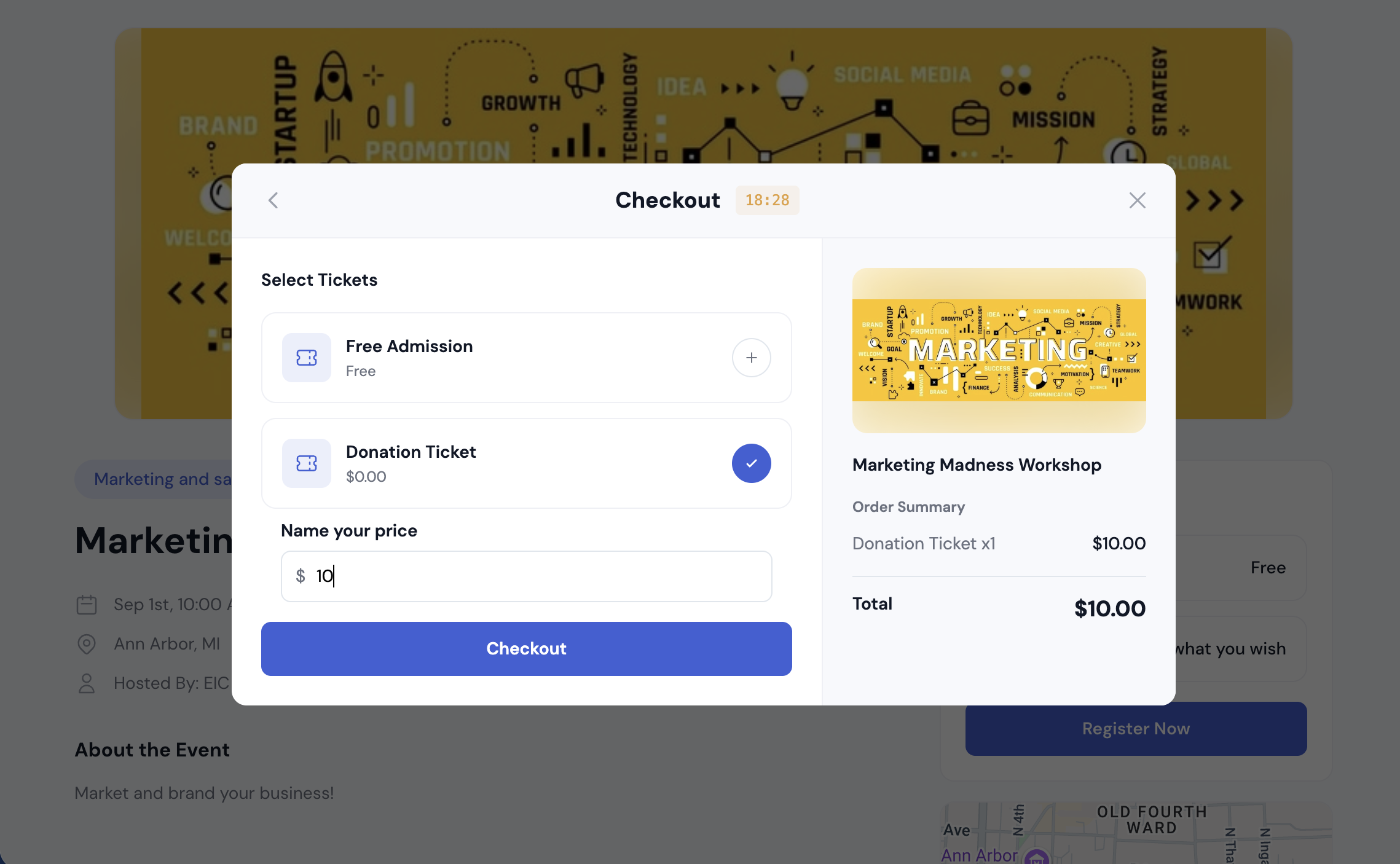
💡 Catalyzer currently supports one ticket per registration. This ensures complete data is collected for every attendee. There is no way to allow a single registration to purchase multiple tickets.
Email Customization
Based on the details you've entered, Catalyzer automatically generates default emails in three groups:
- Confirmation emails — sent when a guest registers
- Reminder emails — sent before the event (default: 1 hour prior)
- Follow-up emails — sent after the event ends (default: 1 hour after)
Two follow-up emails are generated by default rather than one: an Attendees Follow-up for guests who showed up, and a No-show Follow-up for those who didn't, opening with "We missed you at [event name]." Each carries its own copy. Reminder and follow-up emails are scheduled as an amount and a unit (minutes, hours, days, or weeks), set before or after the event.
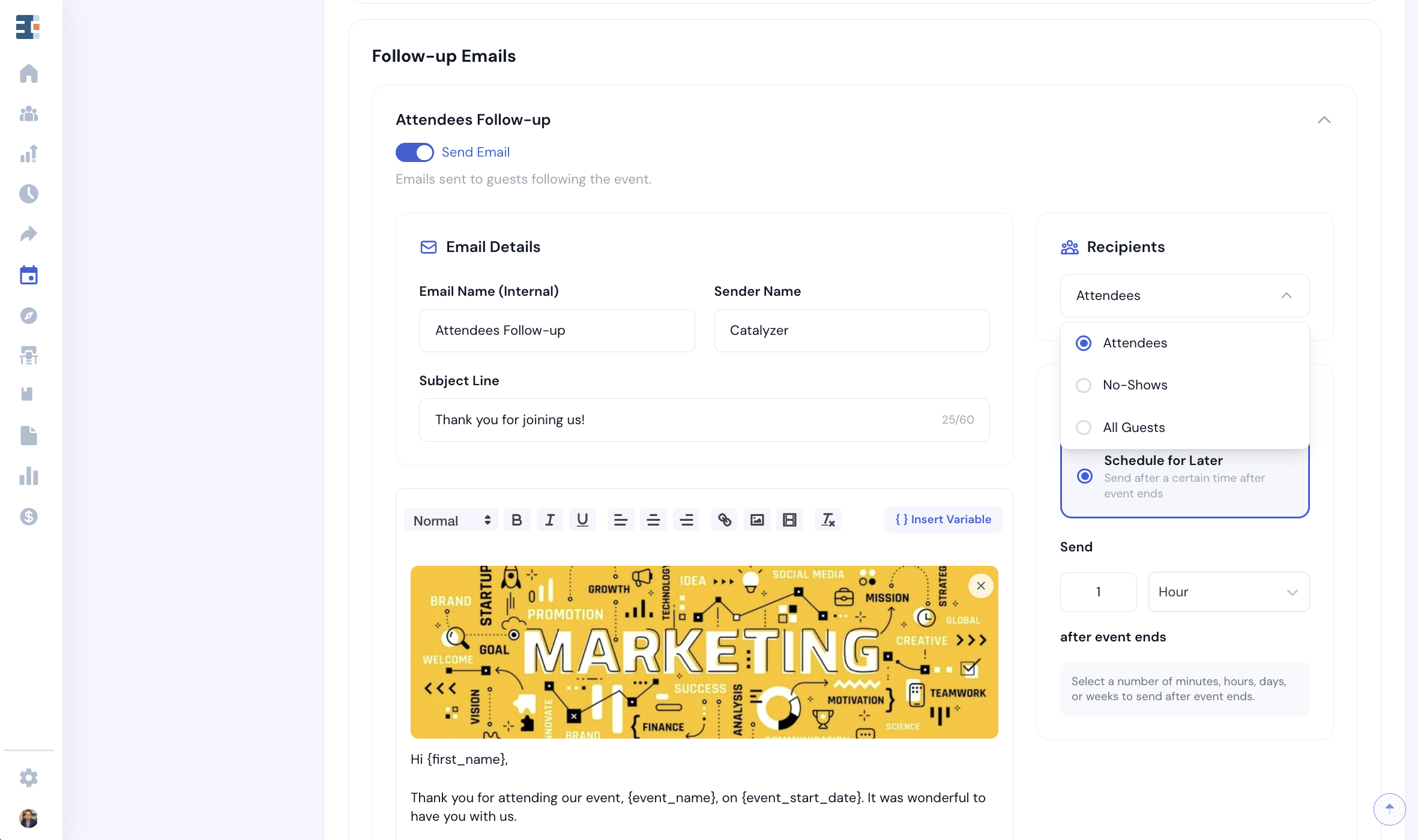
To turn off all emails in a group, toggle Send Email to OFF. This is useful when you want to publish the event now and configure emails later.
To view, edit, add, or delete individual emails within a group, click the dropdown to expand it. From there you can edit the title, from name, reply-to address, subject line, body content, and send time.
Personalizing Email Content
The default email copy is pre-populated based on the event details you entered. You can edit any of it freely.
To personalize emails, click Insert Variable in the email editor. Available variables include event title, start/end date, start/end time, location, and online meeting link. You can also insert variables from your event registration form—handy for addressing guests by first name, for example.
If a variable has no value for a given guest, you'll be prompted to set a default fallback.
Adding and Deleting Emails
To add another reminder or follow-up email, scroll to the bottom of that group and click Add Reminder Email or Add Follow-Up Email. Groups with two or more emails allow individual emails to be deleted. If a group has only one email, you cannot delete it, but you can turn off the group entirely using the Send Email toggle.
Publishing and Sharing
After completing all steps, you'll see a preview of your event's public landing page. From here, you can either save to drafts or publish the event.
Upon publishing, a Share Event modal will appear with the direct URL to the event landing page and an embed code you can drop into your website.
Registering for an Event
Guests can discover events through your public events calendar (via URL or embedded on your website) and register directly from the event's landing page.
For events managed through Catalyzer, guests will see ticket options and pricing alongside the event details. Free events show a Register Now button that leads directly to the registration form. Paid events take guests to a payment modal after the form is completed. If a ticket is code-gated, guests can enter their code to unlock it.
For events managed outside Catalyzer, guests will see a single Register Now button that redirects to the external registration page. No ticket or pricing information will be displayed.
💡 If your registration form has a custom redirect URL configured, guests will be forwarded to that URL after completing payment (or after form submission, if the event is free).
Managing a Published Event
To manage a published event, click its card, list row, or calendar item to open the Event Detail Page.
Guests Tab
The Guests tab is the central place to view and manage everyone associated with your event. The table displays each guest's name, email, ticket number and type (if applicable), attendance status, and amount paid. A client icon next to a guest's name indicates they're already in your hub's client list.
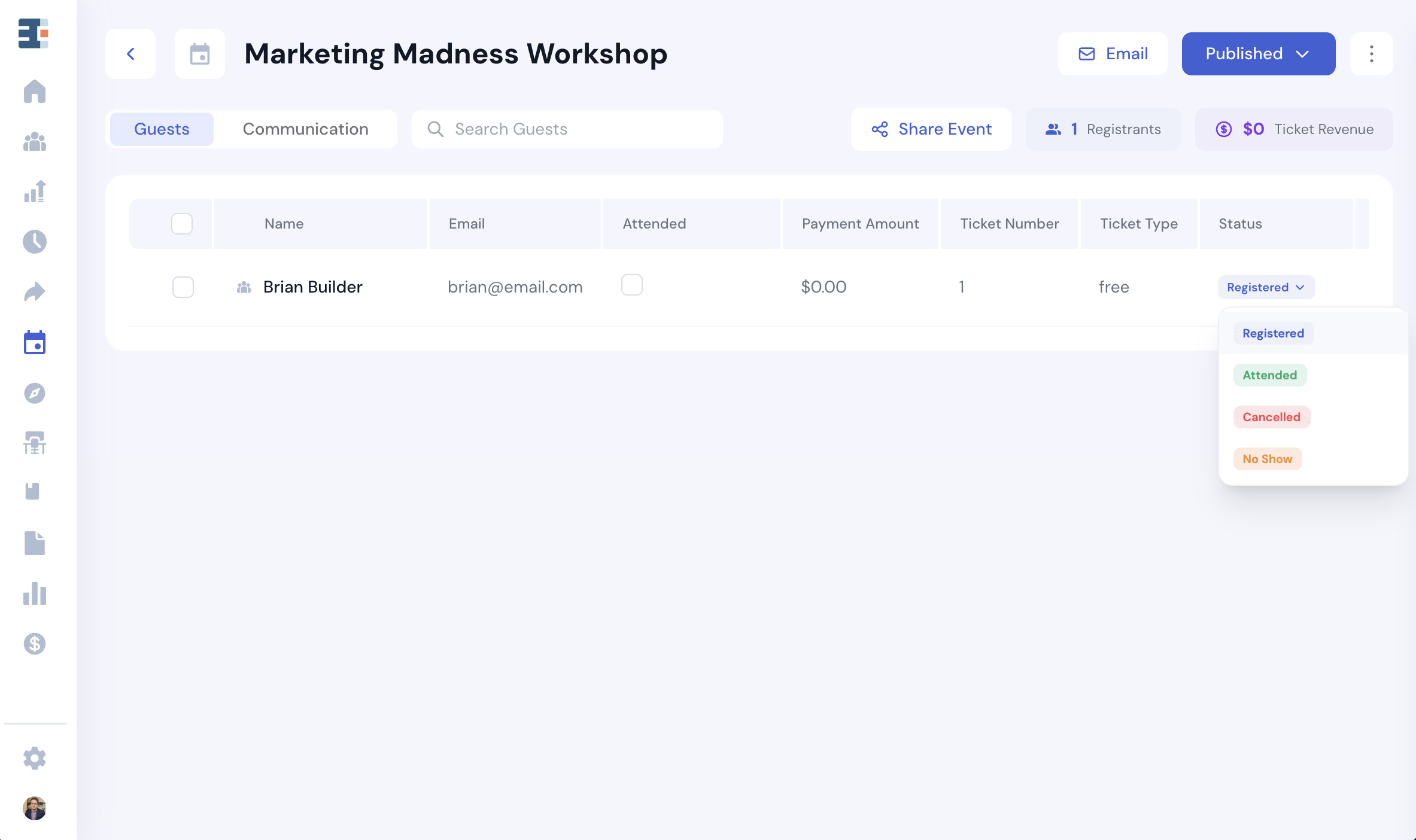
Click the three-dot menu and select Manage Columns to customize the table. Any question from the registration form can be added as a column. The only columns that cannot be removed are name, email, and attendance status.
Recording Attendance
Every guest carries an attendance status, shown as a badge: Registered, Attended, Cancelled, or No Show. New registrants start as Registered. To mark someone as having shown up, check the Attended box next to their name.
No-show is worth recording. It feeds your event's stats and can be used as an audience when emailing guests (see below).
To record attendance for walk-ins (guests who didn't register in advance), click the three-dot menu and select Add Attendee (to enter one manually) or Upload Attendees (to import a CSV). The CSV must include only three columns: Email, First Name, and Last Name.
💡 Attendees can be added without an email address, but having an email makes it possible to quickly add them to your client list.
Adding Guests to Clients
To add a guest to your hub's client list, hover over their row and click the client icon that appears next to their name. You'll be asked to confirm before the guest is added. This action can only be undone by deleting the record from the Clients tool.
Emailing Guests
Click the Email button in the top right to send a message to all guests. To reach only specific guests, use the checkboxes to select them first, then click Email.
Refunding and Removing Guests
To refund a guest without removing them, hover over their row, click the three-dot menu, and select Refund. Their Amount Paid will update to $0.00 after confirmation.
To remove a guest, select Remove from the same menu. If the guest has paid, you'll be asked whether to remove and refund, or remove without refunding. Either way, removing a guest reopens their spot for the event and restores a ticket under their ticket type.
Bulk Actions
Selecting multiple guests with the checkboxes enables bulk Add to Clients, Remove, and Refund actions at the top of the table.
Exporting the Guest List
To export guest data, click the three-dot menu and select Export. The export includes the full guest list, ticket and attendance information, and complete registration form responses.
Communications Tab
The Communications tab shows all emails related to the event—both the ones configured during event creation and any one-off emails sent using the Email Guests feature. Scheduled emails are shown alongside those already sent.
Printing Badges
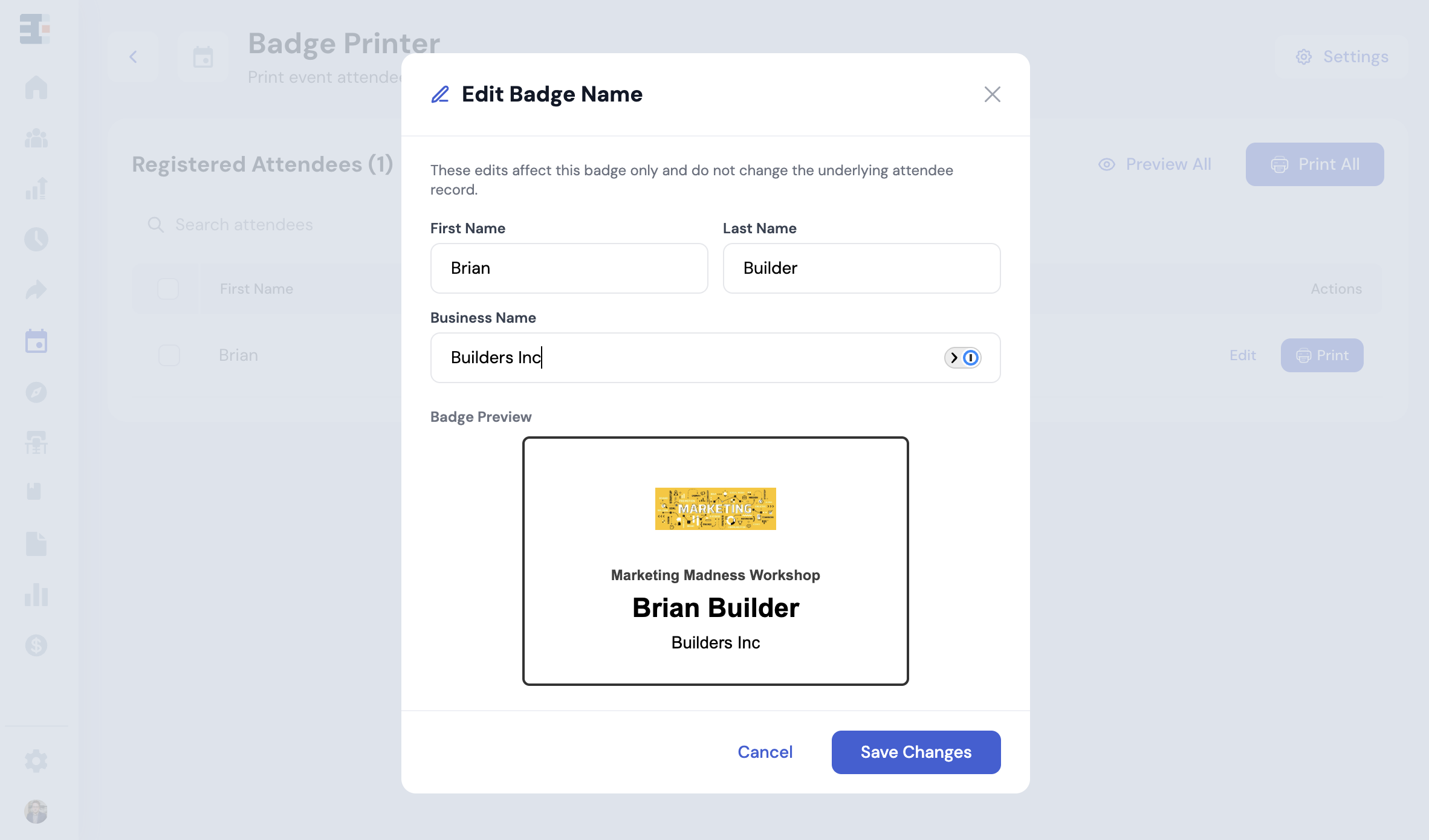
Catalyzer can generate printable name badges for your guest list. Open the event detail page, click the three-dot menu, and select Print Badges.
The badge printer lets you set an image mode (your event image, a custom image, or no image), choose badge colors, and edit individual badges before printing. A preview shows exactly what will come off the printer.
Badges pull from your guest list, so run attendance imports and walk-in additions before printing if you want everyone covered.
Editing a Published Event
To edit a published event, click the three-dot menu on the event card and select Edit, or open the event detail page and click the dropdown under Published and select Edit Event. The event creation flow will reopen, and you can navigate directly to any section to make changes.
A few things to keep in mind when editing published events:
- Emails that have already been sent cannot be edited.
- Ticket quantities cannot be reduced below the number already sold.
- Event capacity cannot be set lower than the current number of guests.
- Ticket prices can be updated, but existing ticket holders are not automatically charged or refunded—only new purchases reflect the updated price.
- The hub assigned to an event cannot be changed after publishing.
Editing or Deleting a Recurring Event
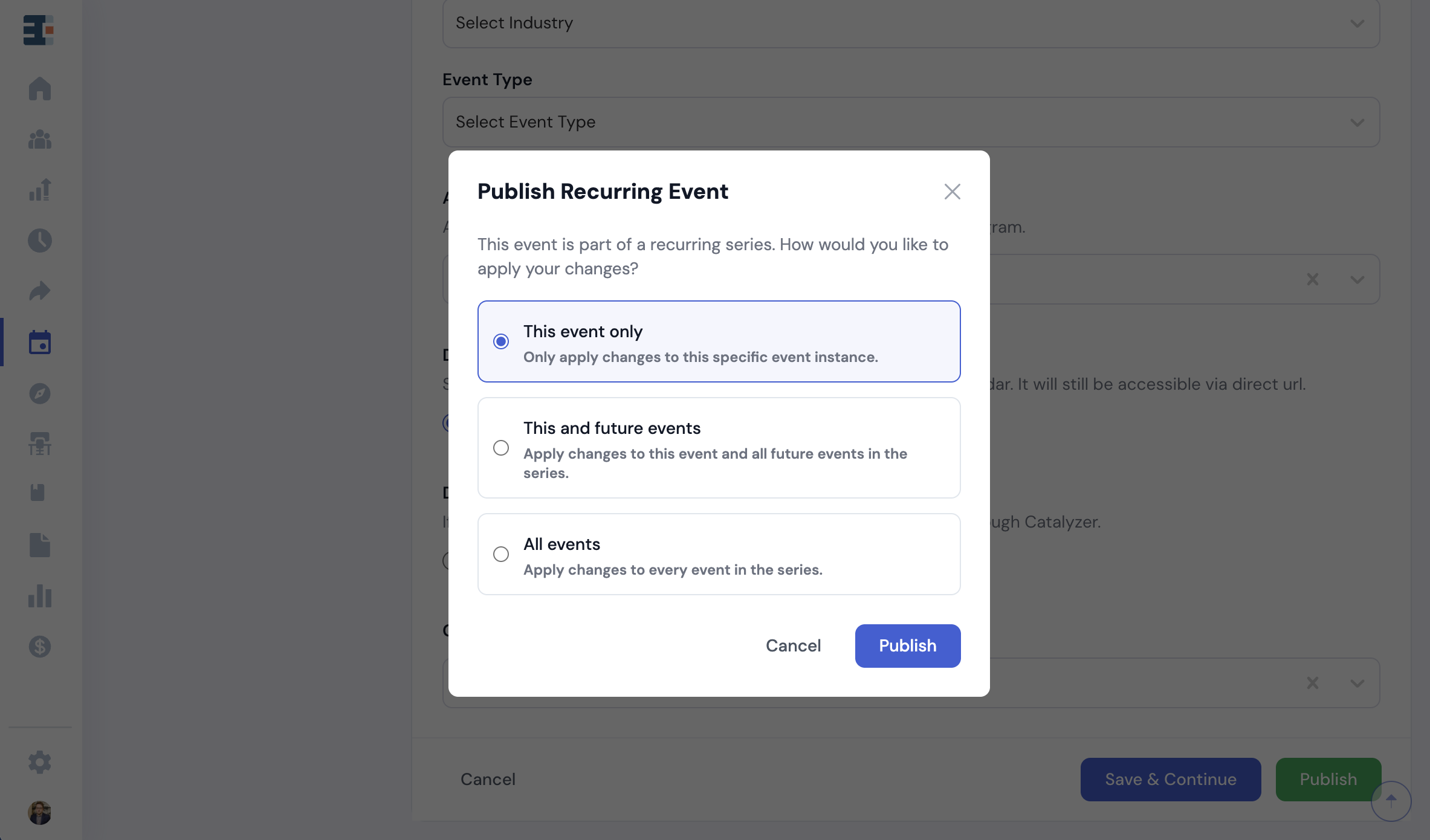
When you edit or delete an event that belongs to a recurring series, you'll be asked how far the action should reach:
- This event applies to this instance only.
- This and future events applies to this instance and every one after it.
- All events applies to every event in the series.
Choose carefully when changing shared details like location or meeting links, since those are inherited across the series.
Unpublishing an Event
To unpublish an event, click the dropdown under Published and select Unpublish Event. This deactivates the event's public URL, removes it from the public calendar, and moves it back to drafts.
💡 Events with an active guest list cannot be unpublished. All guests must be removed before unpublishing.
Verifying a Completed Event
Once an event has passed, users with verify permissions will see a Verify Event button on the event detail page. Clicking it confirms that the event occurred and that the attendance record is accurate. Past events can also be verified directly from the calendar by clicking the verification badge on their card or list row.
Third-Party Events
Catalyzer supports third-party event submissions, allowing partner organizations, consultants, and other external stakeholders to list their events on your hub's public calendar.
When submitting an event, third parties choose how registration will be handled:
- I'll collect registrations myself. Guests who click Register Now are redirected to the submitter's own registration page. No ticket or pricing information is displayed.
- Have the organizers collect registrations for me. Registration runs through your hub, using a Basic Form you select during approval. The event then handles registration like any hub-owned event.
In either mode, third parties cannot create tickets, send emails, or manage guests. Those capabilities remain reserved for events your hub owns.
Submitting a Third-Party Event
Third parties can submit an event for review using the Third-Party Event Submission Link, found in the Share modal on the events calendar page (below the calendar embed code). Share this link with any external partners you'd like to allow submissions from.
Approving a Third-Party Event
Submitted events appear under the Pending Review tab, which is only visible to users with event approval permissions. Click View Submission to review the event, then either Delete or Approve and Publish it.
When approved, the submitter receives a confirmation email containing their Event ID and a link to edit their event in the future.
When the Hub Collects Registrations
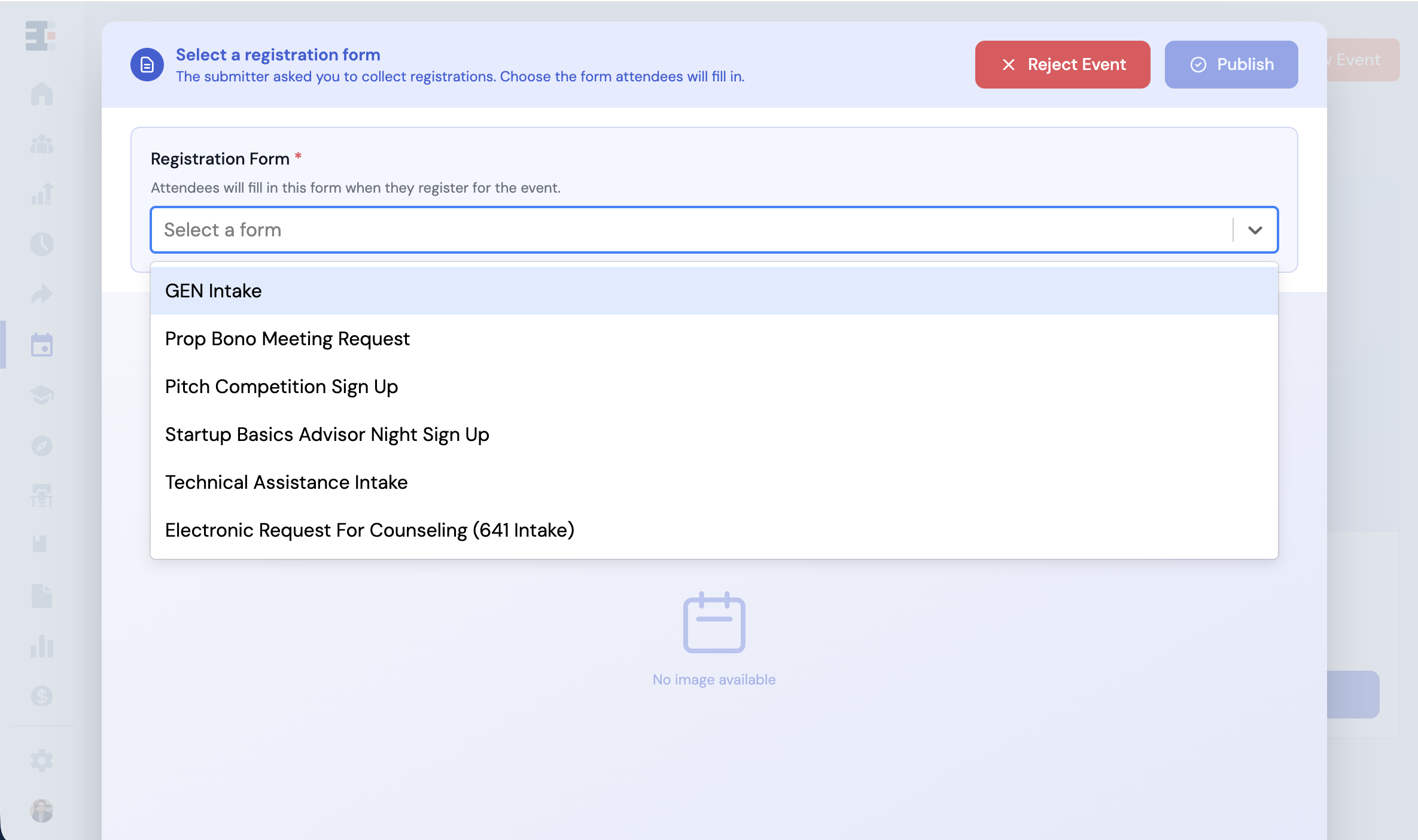
If the submitter asked your hub to collect registrations, you must select a Basic Form before the event can be approved. At minimum, the form must collect an email address.
This is your hub's decision point. Because you choose the form, you control exactly what data is collected for an event your team did not create.
Editing a Third-Party Event
The submitter can edit their event at any time using the link in their approval email. After entering their Event ID, they can update event details and re-submit. The edited event will reappear under Pending Review for your team to review and approve before the changes go live.
Additional Details
Event Settings & Filters
Event filters are configured globally for all events in your hub. Navigate to Settings → Events to manage them.
Three filters are provided by default: Topic, Industry, and Event Type. Each comes with a predefined list of options that you can edit or delete. You can also create up to 10 custom filters by clicking Add Event Filter.
When creating a custom filter, you can configure:
- Filter name (required) and description
- Options for that filter (at least one required)
- A color for the filter's tag
- Whether the filter is required during event creation
- Whether the filter allows multiple selections
💡 Deleting a filter option removes it from any existing events already tagged with that option. Deleting an entire filter removes it from all events as well.
Event Permissions
Event permissions are set at the hub and network level. There are no user-level permission overrides for events. Permission levels include: View, Edit, Create, Approve, Verify, and Delete.
Events on the Client Record Page
The Events tab on a client's record page shows all events that client registered for or attended, including the event name, start date, attendance status, amount paid, and ticket type (if applicable). Each row links to that event's detail page.
Events on the Program Page
The Events tab within a Program lists all events associated with that program, along with the number of registrations, number of attendees, total ticket revenue, and verification status for each.