

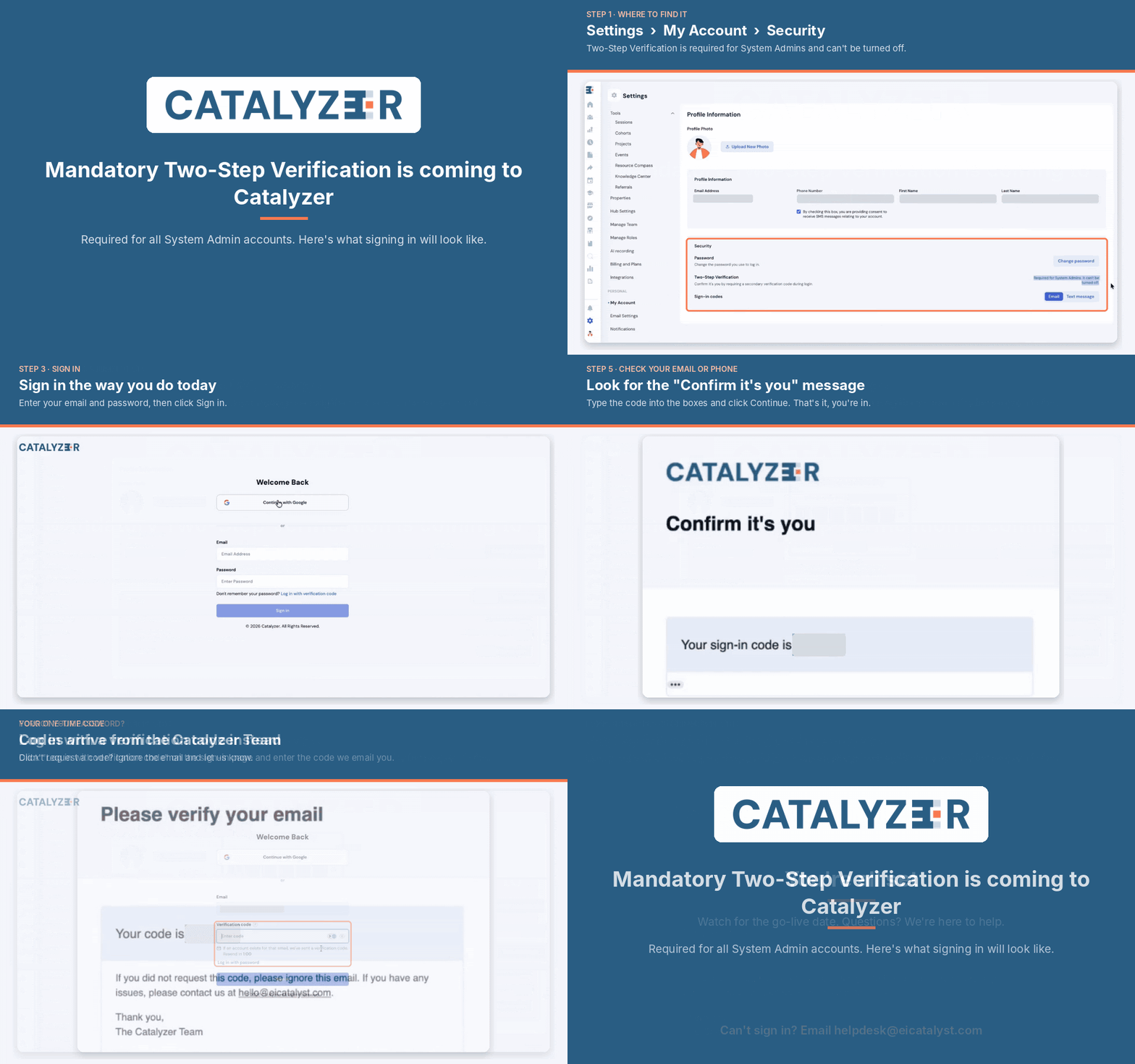
What Is Two-Step Verification in Catalyzer?
Two-Step Verification is a sign-in safeguard in Catalyzer, where you confirm who you are in two different ways before your hub opens.
Think of each step as a separate piece of proof. Your password shows that you know something only you should know. A verification code, a 6-digit number sent to your email or phone, shows that you can reach something only you should have.
You might hear a teammate describe it like this: "I entered my password as my first step, then typed in the code from my email as my second step."
Two-Step Verification is mandatory for every System Admin account, starting November 4, 2026. It applies at every sign-in, and there is no way to turn it off on a System Admin account.
If you sign in with a password or with Google, you don't need to set anything up in advance. The first time you sign in after the change, Catalyzer sends a verification code to your email. Entering that code turns Two-Step Verification on for your account.
If you already use Two-Step Verification, your setup stays as it is.
Why Is Two-Step Verification Being Introduced?
System Admins have broad permissions in a hub. They can add team members and change their roles, which decides who can work with your hub's records.
Catalyzer is the single source of truth for your organization's programs and data, so an account with this level of access needs more protection than a password alone. With a second step in place, a stolen password isn't enough to sign in as you.
Two-Step Verification was already available as an optional setting. It's now required for System Admins because of the access this role carries.
Who Is Required to Use Two-Step Verification?
Two-Step Verification is required for anyone who holds the System Admin role in at least one hub. The requirement follows the person, so it applies at every sign-in, whichever hub you're signing in to.
Say Maya is an Advisor in her SBDC's hub and a System Admin in the hub for a spring accelerator. Maya completes the second step every time she signs in, even on days she only works in the SBDC hub.
The same goes for System Admins in a superhub network. The requirement applies when you sign in to a subhub of that network.
The Admin role, the Advisor role, and custom roles aren't covered by this requirement. Anyone in those roles can still choose to turn on Two-Step Verification by clicking Add verification in Account Settings.
💡 Does this apply to the Admin role? No. System Admin and Admin are separate roles, and the requirement follows the System Admin role only. If you're unsure which role you hold, ask a System Admin on your team.
Because the requirement applies at sign-in, a role change takes effect the next time that person signs in. If you lose the System Admin role, Two-Step Verification stays on until you turn it off in Account Settings.
How Two-Step Verification Works
Every sign-in has a first step and a second step. Your first step is how you choose to start. Your second step depends on that choice and on how your account is set up:
- Continue with Google: Google confirms your account as your first step. Your second step is a verification code.
- Email and password: Your password is your first step. Your second step is a verification code.
- Email and verification code: A code sent to your email is your first step. Your second step is a code sent to your phone if you've set up text message codes, or your password if you haven't.
Second-step codes arrive by email unless you've set up text message codes, in which case they arrive on your phone.
💡 An important rule in Catalyzer: The two steps of a sign-in must be different. Two codes to the same inbox would prove the same thing twice, so Catalyzer doesn't follow an emailed sign-in code with a second emailed code.
Each code works once. The code boxes show dots as you type, and the eye icon reveals what you've entered.
How to Sign In to Catalyzer
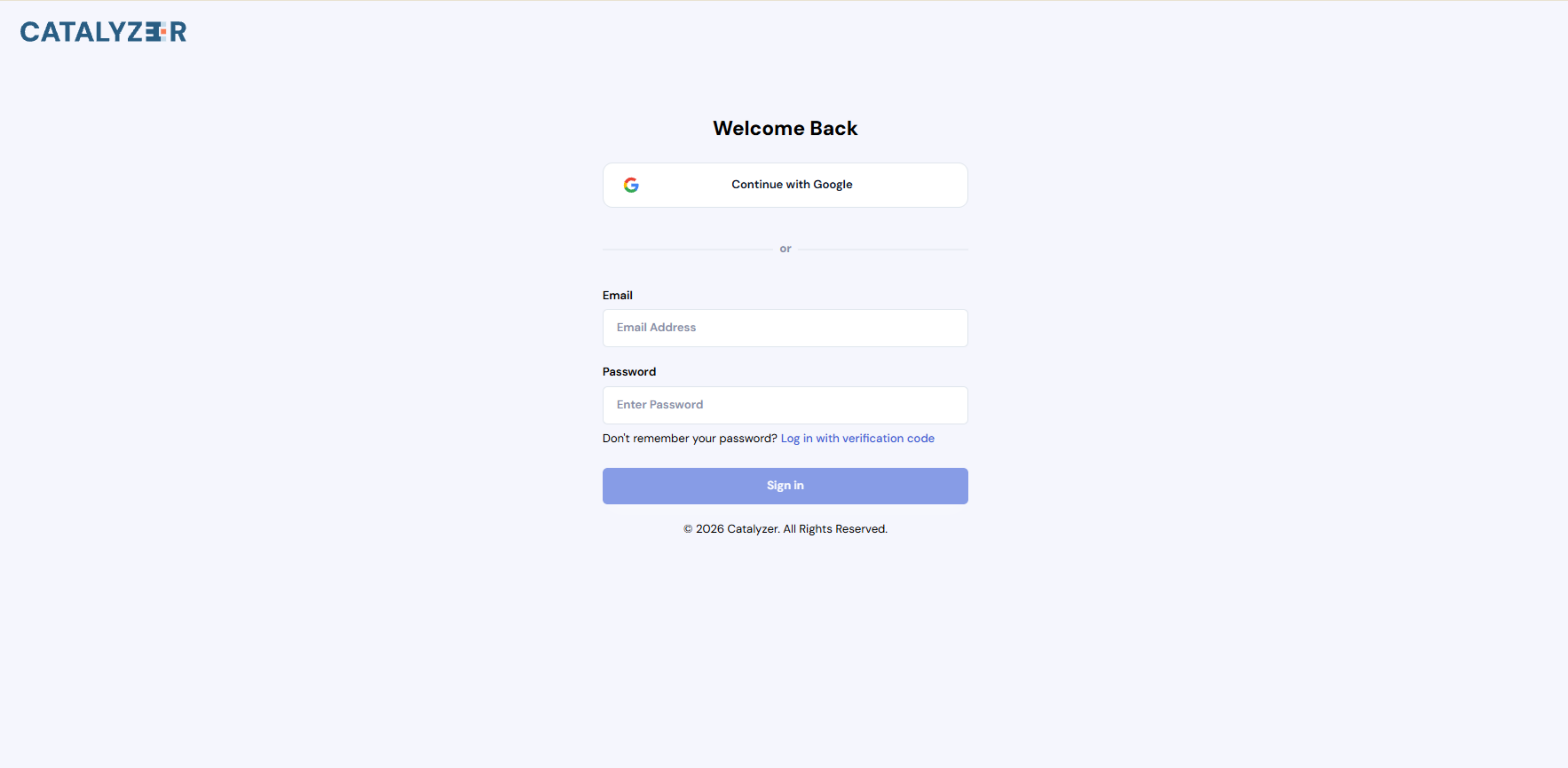
Start on the Catalyzer sign-in page, which offers three ways to begin.
Continue with Google
- Click Continue with Google.
- Choose your Google account.
- Enter the verification code sent to your email, or to your phone if you've set up text message codes.
Email and Password
- Enter your email address and password.
- Sign in.
- Enter the verification code sent to your email, or to your phone if you've set up text message codes.
Email and Verification Code
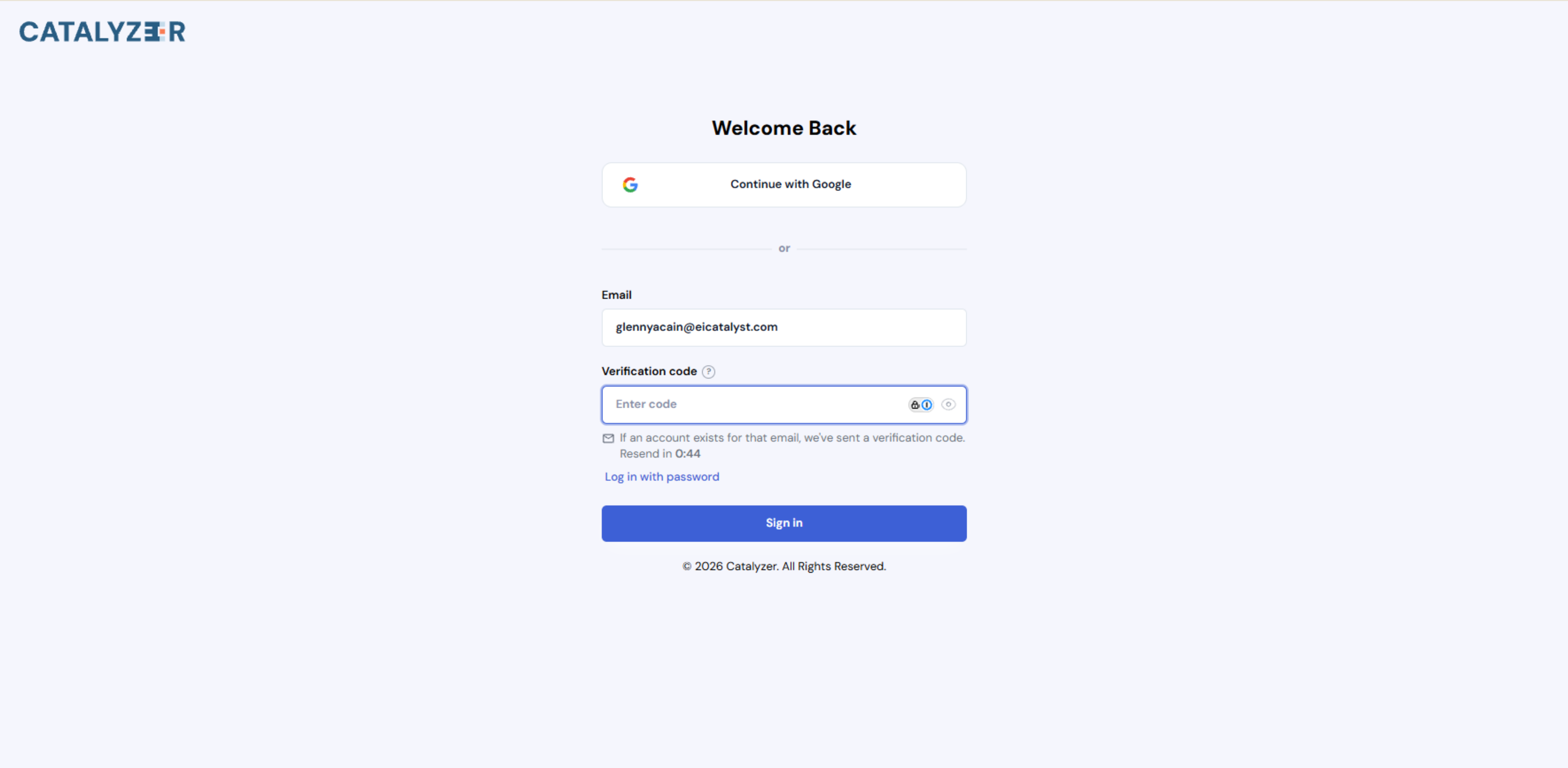
- Enter your email address.
- Click Log in with verification code.
- Enter the code sent to your email.
- Click Sign in.
- Complete your second step:
- If you've set up text message codes, enter the code sent to your phone.
- If you haven't, Catalyzer shows "Code accepted. This account also needs its password." Enter your password.
- If you have neither text message codes nor a password, follow the steps in Setting a First Password.
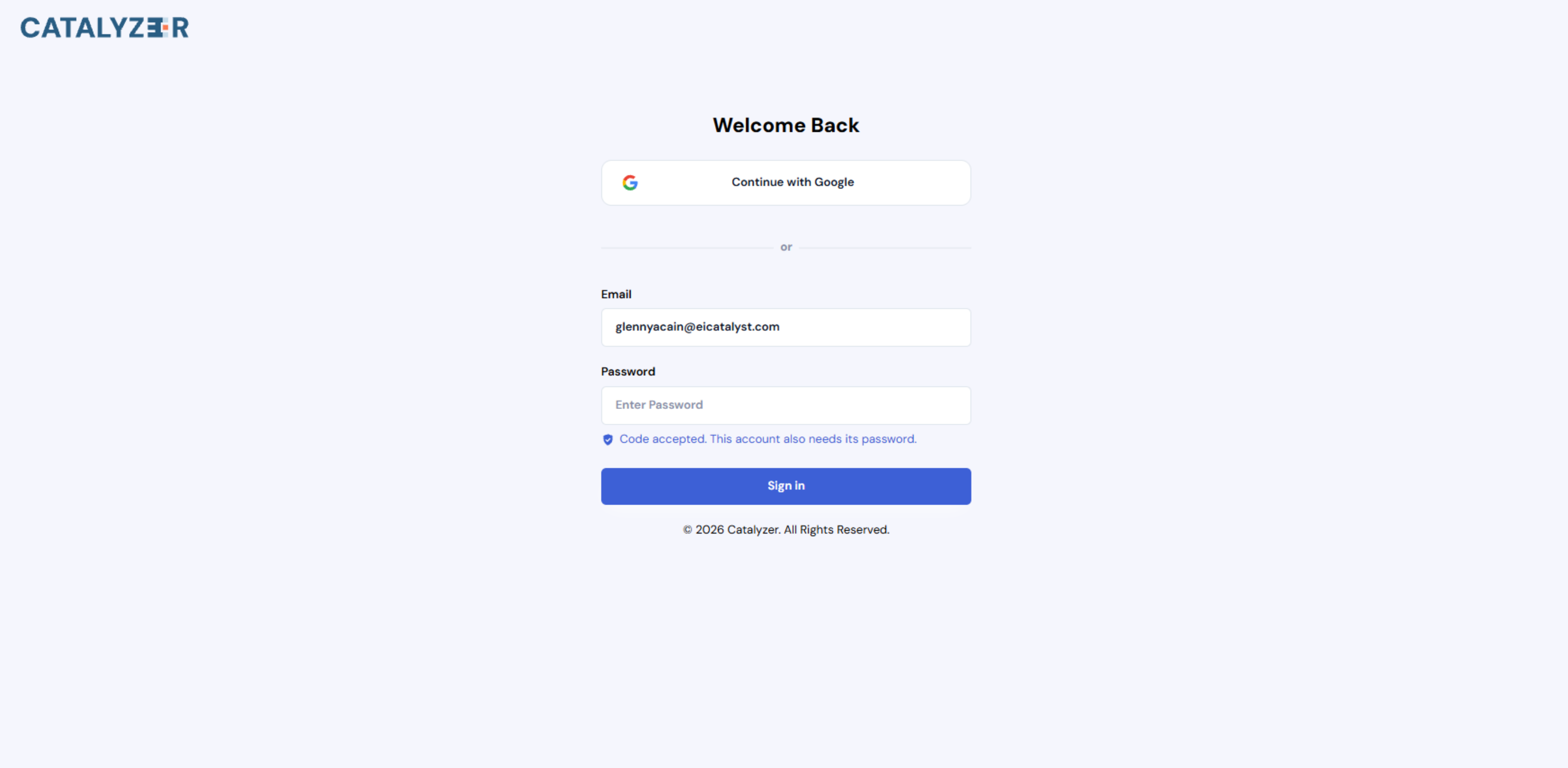
Setting a First Password
Some System Admins have only ever signed in with a code or with Google, so their accounts have no password. If that's you, that's perfectly fine. Catalyzer takes you through creating one.
If your account has no password and you haven't set up text message codes, signing in with a verification code brings you to this step. Newly invited System Admins reach it from their invitation link. Catalyzer shows "Email confirmed. This account needs a password. Set one, then sign in with it."
- Enter a password in New Password.
- Enter it again in Repeat Password.
- Click Set Password.
- On the sign-in page, enter your email address and new password.
- Enter the verification code sent to your email.
Setting a password doesn't sign you in. This ensures the sign-in that follows has two different steps: your new password and an emailed code.
This step stays open for 15 minutes. If it expires, click Back to sign in and request a new code. If Catalyzer refuses a password, the message explains why, and you can try a different one without a new code.
Choosing Your Sign-In Setup
Verification codes reach you by email or by text message. Catalyzer doesn't currently offer authenticator apps.
Email is the default. Codes go to the email address on your account, and no setup is needed. Text message codes are not turned on automatically for anyone. They start only after you complete the steps in Setting Up Text Message Codes.
Which Setup Fits Your Account
- If you have a password, there's nothing to set up. Sign in with your password and an emailed code, or start with a verification code and enter your password when asked.
- If you don't have a password yet, sign in with a verification code and Catalyzer takes you through creating one.
- If you use Google, Continue with Google still works, followed by a verification code.
- If you want text message codes, add your phone number and consent to SMS messages first. A number on your profile doesn't receive codes until you finish the setup below.
- If you'd rather not use a phone number, stay on email. You'll pair your emailed code with your password or with Google.
If you don't use Google, we recommend one of two setups: a password with an emailed code, or a verification code with text message codes set up. Either one means you won't stop to set anything up during sign-in.
Setting Up Text Message Codes
Text message codes are optional, and your phone number comes first. Account Settings has two sections that matter here. Profile Information holds your phone number and your SMS consent. Security holds Sign-in codes, where you choose Email or Text message.
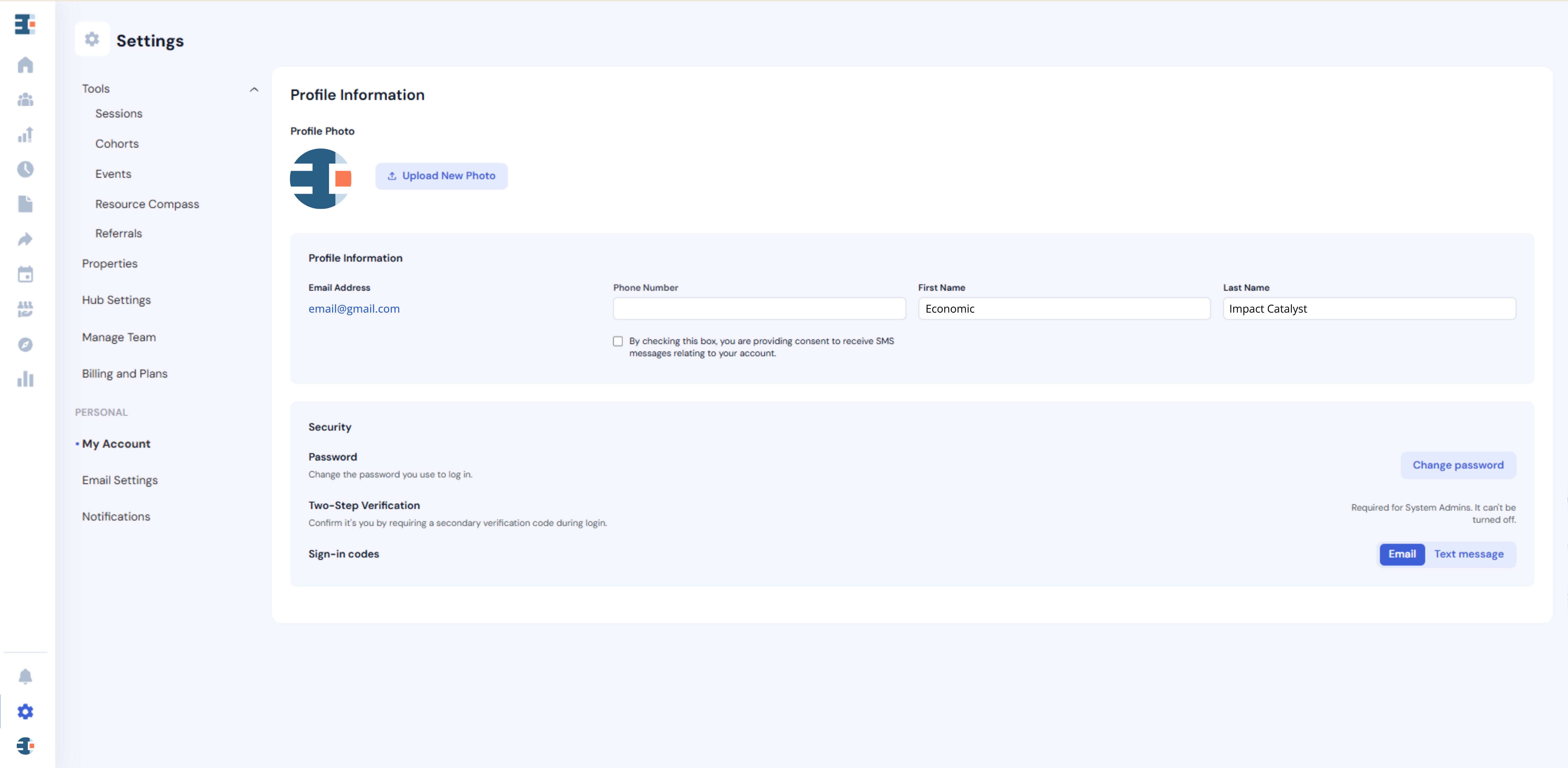
- Open Account Settings.
- In Profile Information, enter your phone number in Phone Number.
- Check the box next to "By checking this box, you are providing consent to receive SMS messages relating to your account."
- In Security, under Sign-in codes, click Text message.
- In Confirm it's you, enter the 6-digit code sent to your email address. The code expires in 5 minutes.
- Click Confirm.
- Follow the prompts to confirm your phone with a code sent by text message.
Changing where your codes go always starts with a code from your current method, which ensures only you can make the change. If the code doesn't arrive, click Send a new code. Click Cancel to stop without changing anything.
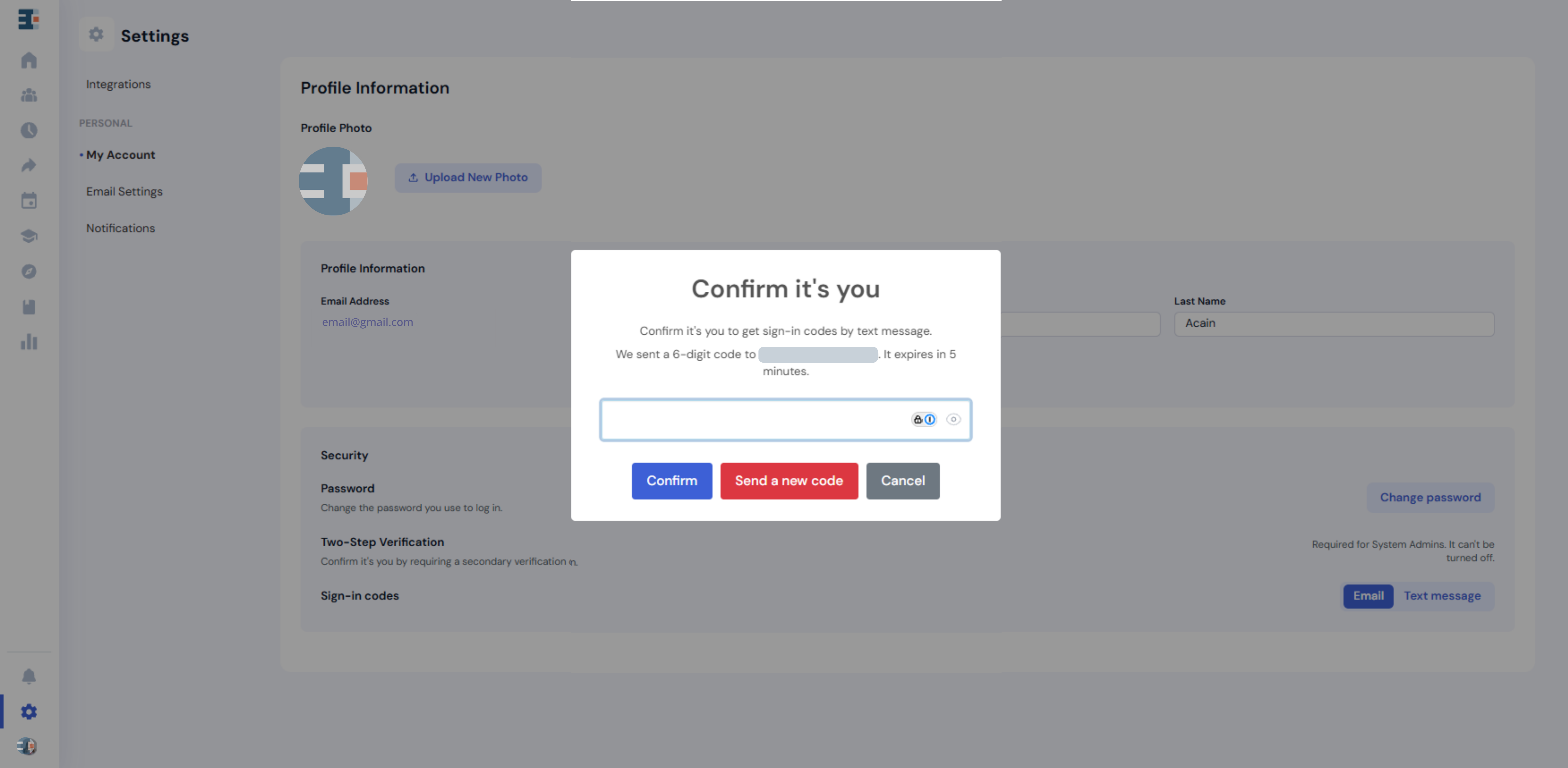
Catalyzer confirms the change with "Sign-in codes will now be sent by text message." The Phone Number field then locks.
To switch back, click Email under Sign-in codes, enter the texted code in Confirm it's you, then enter the code sent to the email address shown.
💡 Note: Saving a number in the Phone Number field doesn't change where your codes go. A number on your profile hasn't been proven to reach you, so Catalyzer only texts codes to a phone you've confirmed under Sign-in codes.
Entering Your Verification Code
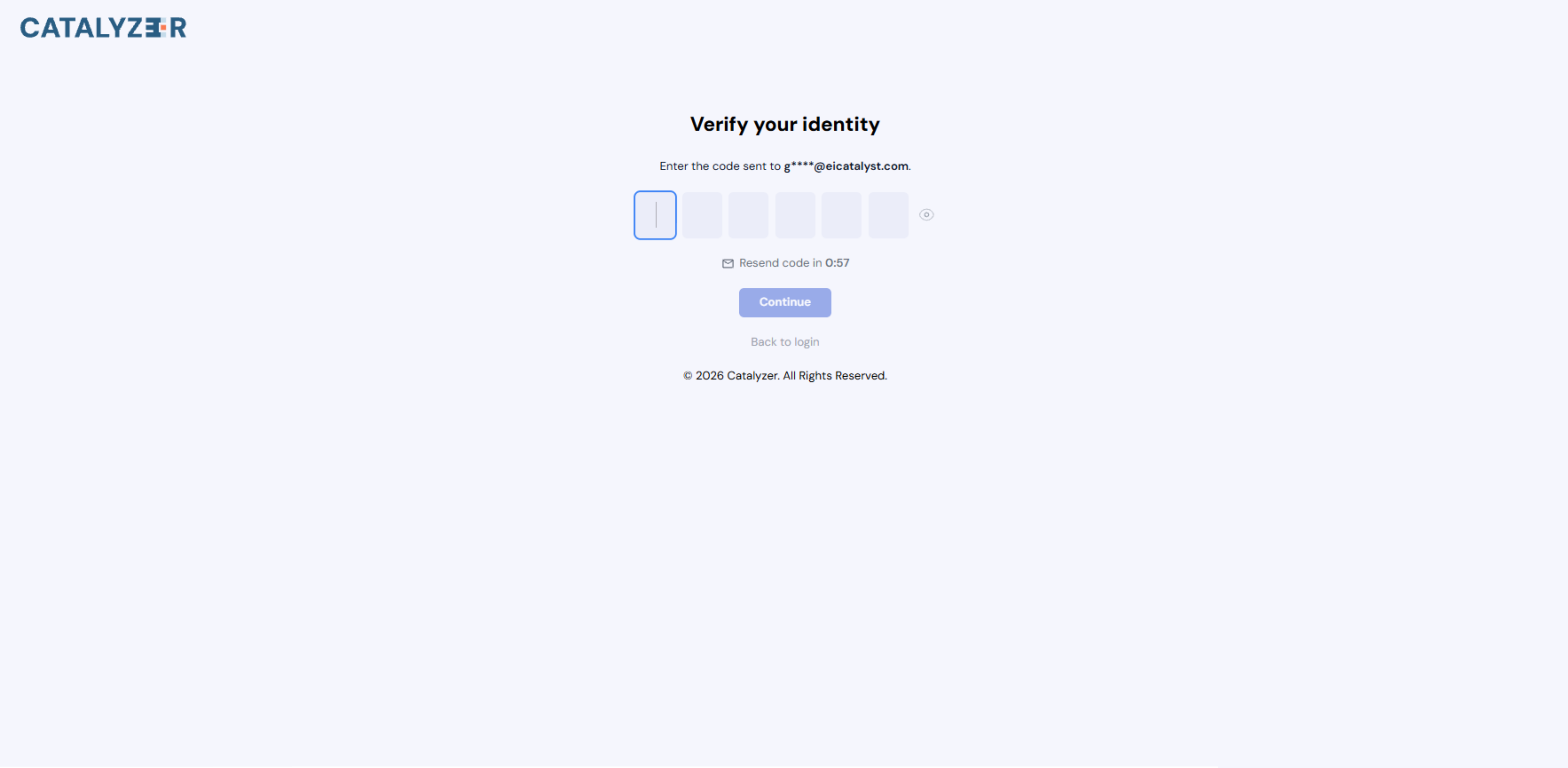
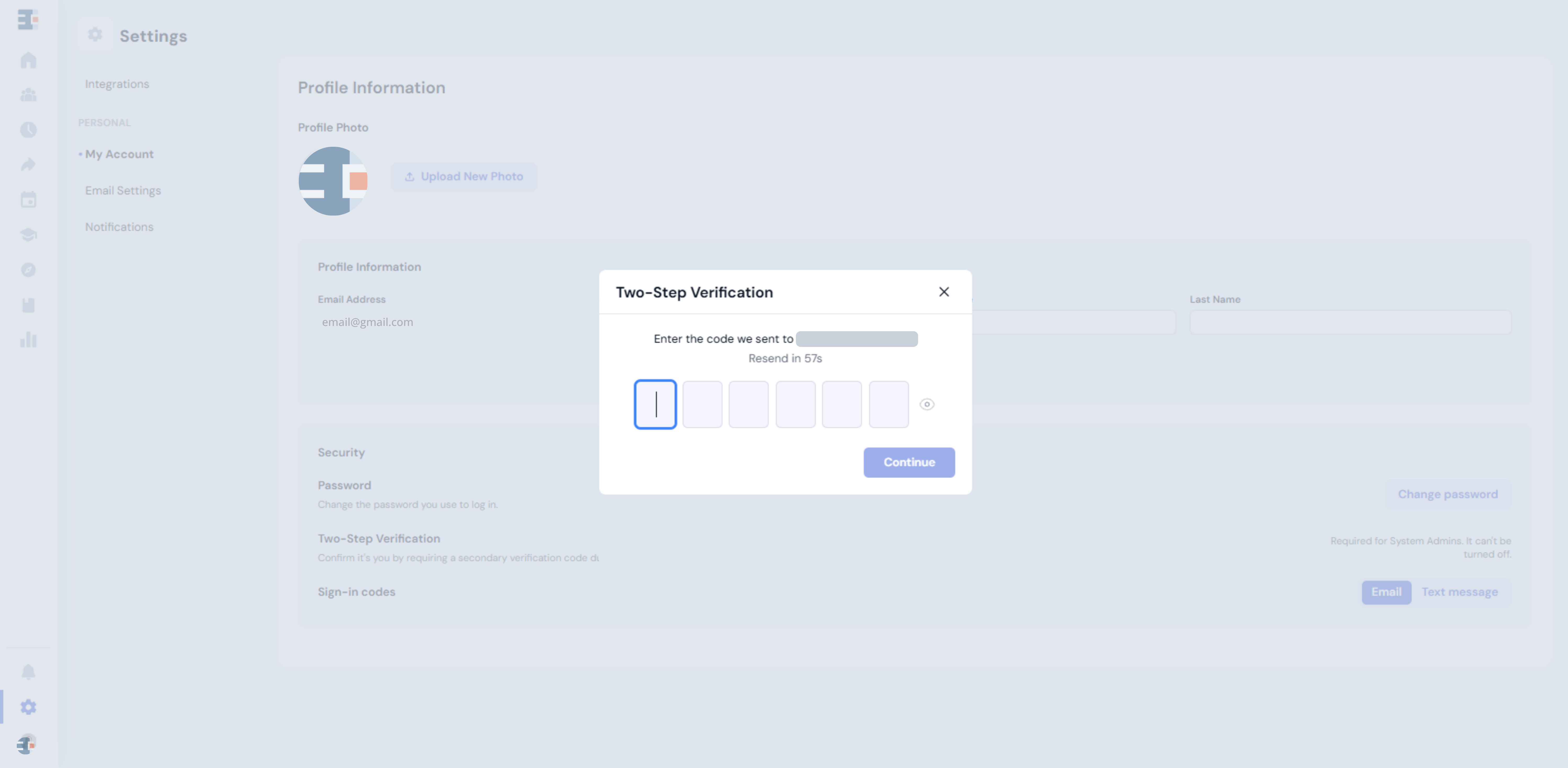
Whenever Catalyzer asks for a code, the Two-Step Verification dialog shows where the code was sent, with part of the address hidden. A Resend timer counts down before you can ask for another code.
- Check your email, or your phone if you've set up text message codes.
- Enter the 6-digit code in the boxes.
- Click Continue.
The eye icon reveals what you've typed.
Changing Your Password
Changing your password is a separate task from signing in. It happens in Account Settings, and it doesn't replace the second step you complete at every sign-in.
- Open Account Settings.
- In Security, next to Password, click Change password.
- In Change Password, enter your Old Password.
- Enter your New Password, then enter it again in Repeat Password.
- Click Continue.
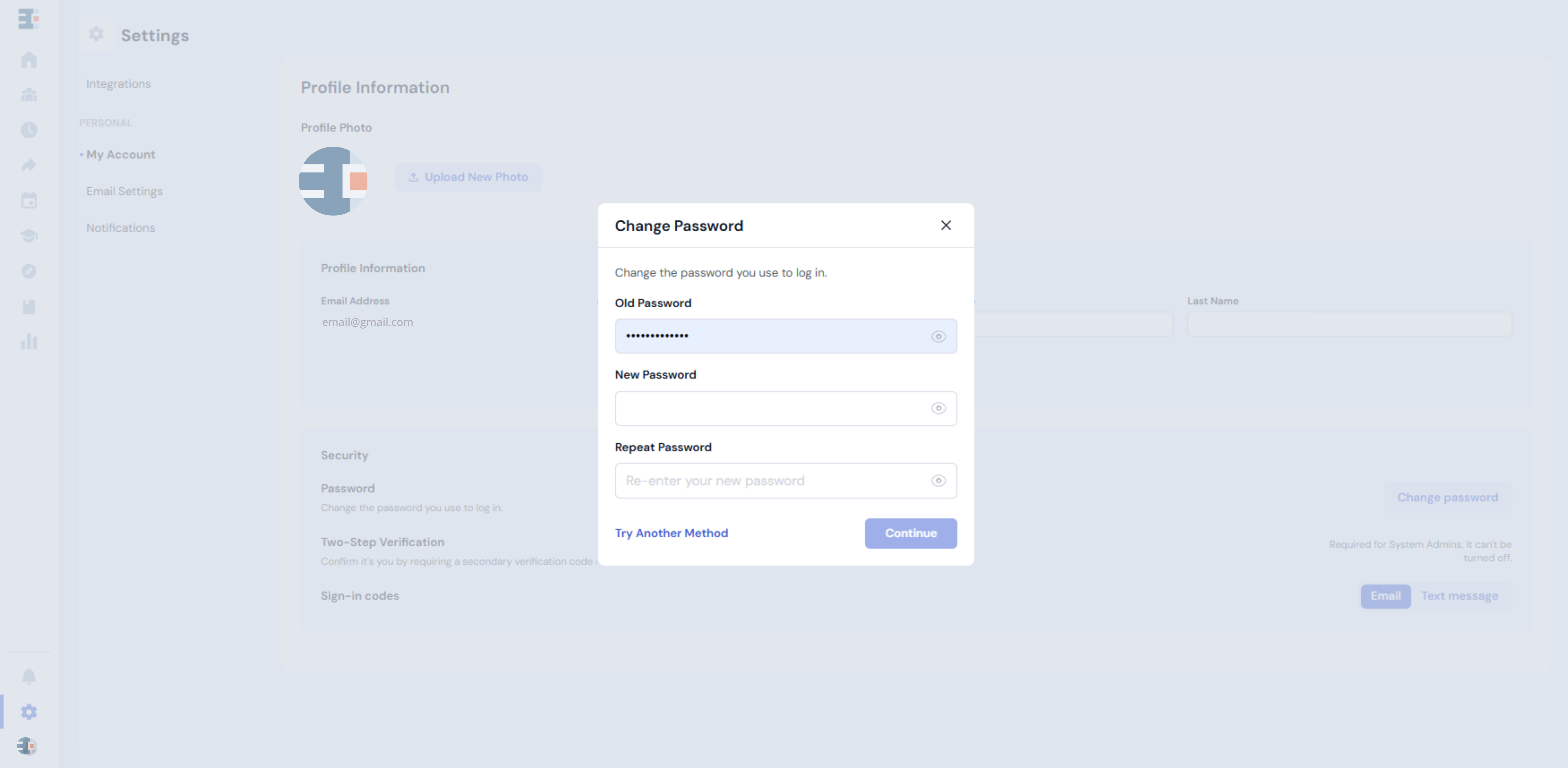
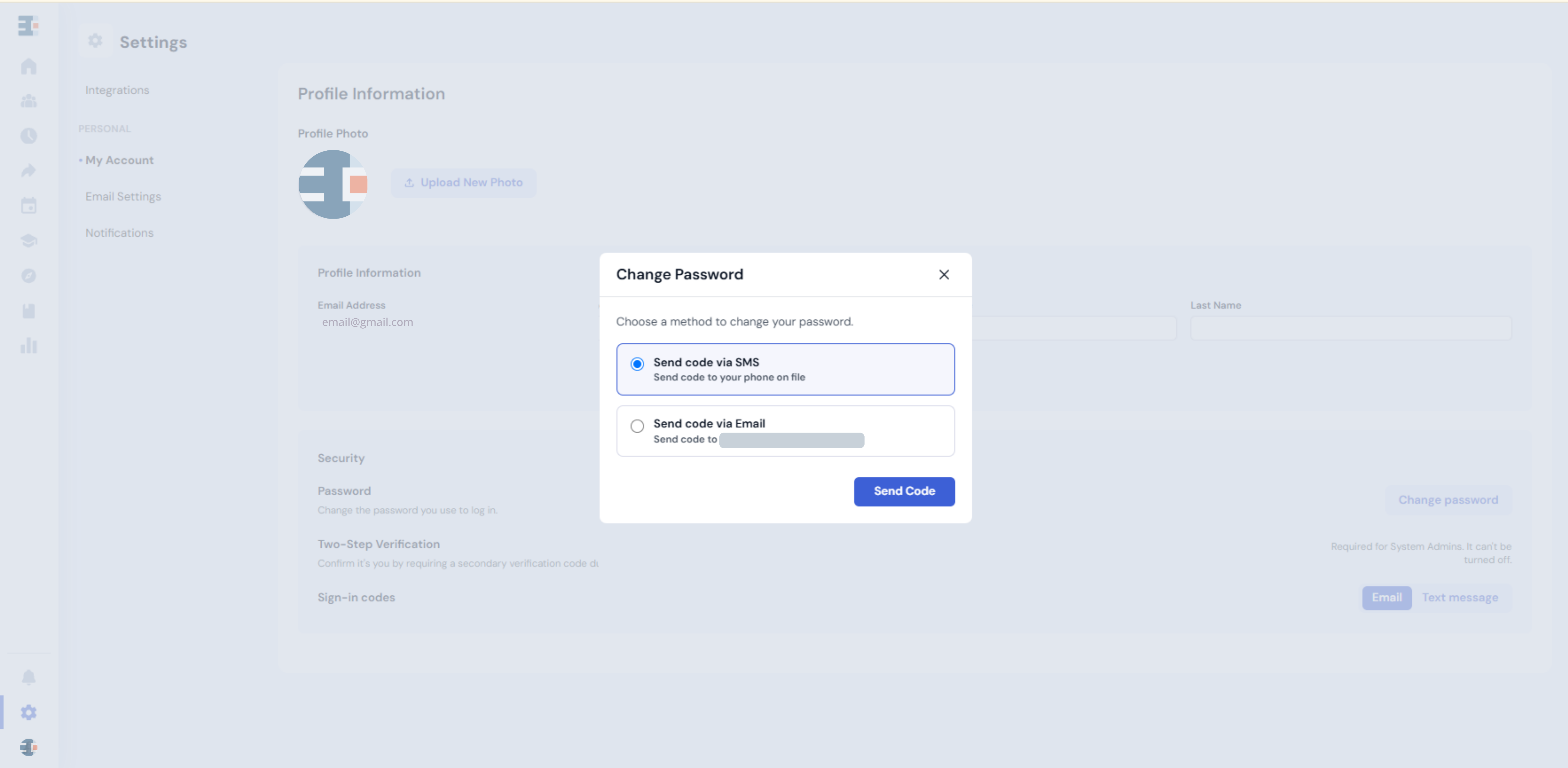
To verify yourself another way, click Try Another Method. Catalyzer asks you to choose how to receive a code:
- Send code via SMS sends a code to the phone on file for your account.
- Send code via Email sends a code to your account email address.
Select an option, then click Send Code. Enter the code when Catalyzer asks for it.
Frequently Asked Questions
Is Two-Step Verification Mandatory for All System Admin Accounts?
Yes. System Admins complete it at every sign-in. In Account Settings, the setting reads "Required for System Admins. It can't be turned off."
Why Am I Being Asked for an Additional Verification Code?
You hold the System Admin role in at least one hub. The requirement follows you, so you'll see the second step even when you're signing in to a hub where you have a different role.
Will I Be Logged Out When This Change Goes Live?
No. Two-Step Verification doesn't sign out anyone who is already signed in. You'll see the second step the next time you sign in.
Do I Need to Use My Phone Number for Two-Step Verification?
No. Text message codes are optional and are never turned on automatically. You can use emailed codes with your password or with Google. To use text message codes, add your phone number and consent to SMS messages in Profile Information, then select Text message under Sign-in codes in Security.
What If I Have Not Set Up a Password?
That's perfectly fine. If you sign in with Google, you can keep doing that. Otherwise, sign in with a verification code and create a password when Catalyzer asks. If you've already set up text message codes, you can sign in with an emailed code and then enter the code sent to your phone.
Can I Continue Using Google Authentication?
Yes. Continue with Google remains available. After Google confirms your account, you enter a verification code.
Where Will I Receive My Verification Code?
Codes go to the email address on your account unless you've set up text message codes. With text message codes set up, your second-step code goes to your phone.
Can I Use an Authenticator App?
Not currently. Catalyzer sends verification codes by email or text message.
What Should I Do If I Experience Difficulties Logging In?
Start with Troubleshooting below. If you still can't sign in, contact Catalyzer support.
Troubleshooting
- If your code doesn't work, request a new one and enter all six digits, including any leading 0. Each code works once, and a sign-in code sent by email expires after 10 minutes, so an old email can't be reused.
- If Catalyzer asks you to wait before sending another code, request a new one when the wait ends.
- If you see a message about too many attempts, wait for the time shown. Five incorrect codes lock sign-in for a period of time, which ensures no one can guess their way in. Requesting a new code won't lift the lock.
- If you added a phone number and codes still arrive by email, text message codes start only after you complete the steps in Setting Up Text Message Codes, including consent and confirming your phone.
- If your codes go to your phone and you'd prefer email, click Email under Sign-in codes in Account Settings.
- If your set-password step expired, click Back to sign in and request a new code.
Additional Support
Two-Step Verification adds one more step to each sign-in. That step helps keep System Admin access, and the hub records behind it, with the person the account belongs to.
