What Are Courses in Catalyzer?
A course is structured learning material a client works through on their own, built and managed by your staff. You might use courses to deliver the curriculum behind an accelerator, to get founders through a required financial literacy sequence before their first advising session, or to give a cohort something to complete between meetings.
Courses is a module rather than a core tool, so it appears in your hub only when the LMS module is enabled. If you don't see it in your navigation, that's the reason.
This article covers the authoring side, which is everything you do in Catalyzer: building the material, publishing it, enrolling learners, and reviewing their work. Learners open the content and do the work in Startup Space, which has its own knowledge base.
How a Course Is Structured
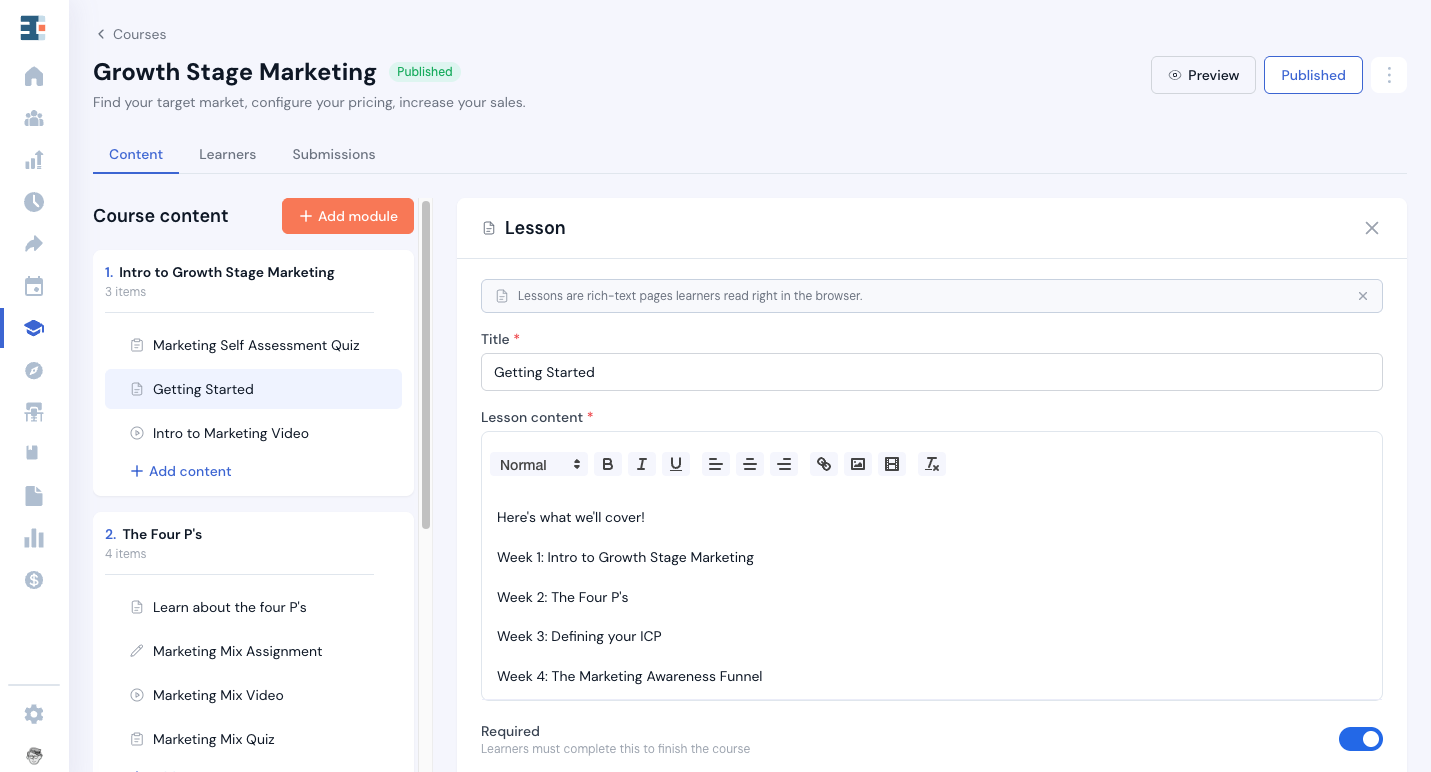
A course contains modules. A module contains content items. That is the entire structure, and it does not nest any deeper.
Everything else you configure is a decision about how a learner moves through that structure: whether they take it in order, what has to be finished for the course to count as complete, and whether dates control when material opens.
Course Settings
You set these when you create a course, and you can edit them afterwards. Course name and Description are what learners see first. The Cover image accepts a drag-and-drop or a browse, at "PNG, JPG up to 10MB".
Two settings deserve real thought, because between them they decide what "finished this course" means.
Sequence
Sequential requires learners to complete the material in order. Freeform lets them choose their own path through it.
Sequential suits a curriculum where each module builds on the last. Freeform suits a library of material where a founder should be able to go straight to the section on hiring without sitting through cap tables first.
Completion Criteria
All content must be completed counts a course as finished only when the learner has worked through everything in it. Only required content counts it as finished once the required items are done.
Every content item carries a required or optional setting. The toggle reads Make optional and Make required, and the UI describes a required item as one learners must complete to finish the course.
These two settings interact, and the combination is worth checking before you launch. A course set to "Only required content" with a great deal of optional material will report learners as complete when they have seen a small fraction of what you built. That may be exactly what you want for a resource library. It is rarely what anyone wants for an accelerator curriculum.
Self-Enrollment
Allow learners to self-enroll is a checkbox, and it's off until you turn it on. A course with self-enrollment off and no cohort linked to it can only be reached when an advisor assigns it to someone.
The Six Content Types
The Add content picker offers six kinds of item.
- Lesson. A rich-text page to read, written and formatted in Catalyzer.
- Video. Embed a YouTube, Vimeo, or Loom video by pasting its URL. You can add a transcript.
- Resource. A file or link to open or download, for a template, a worksheet, or an outside article.
- Quiz. Auto-graded questions with a passing score.
- Assignment. Collect answers or a file to review.
- Checklist. Items the learner ticks off, with nothing submitted and nothing graded.
The last three blur together for most people, so here is the distinction in one line each. A quiz has right answers. An assignment gets read by a human. A checklist only records whether each item was ticked.
Building a Quiz
A quiz can use short text, long text, file upload, multiple choice, checkboxes, dropdown, and true or false questions.
Only Four Question Types Grade Themselves
Multiple choice, checkboxes, dropdown, and true or false are graded automatically. Short text, long text, and file upload are authored the same way, and the builder marks them "Reviewed manually" because a person has to read them.
The consequence catches people out. Adding one long-text question to an otherwise objective quiz turns it into something a facilitator has to sit down and grade for every learner who takes it. That may be worth it. Decide it deliberately rather than discovering it when the submissions arrive.
Authoring an objective question means marking which answer is right. Catalyzer prompts "Mark the correct answer." on single-answer questions and "Tick every correct answer." where more than one applies.
How a Learner Passes
A quiz passes one of two ways. Pass automatically at a threshold you set lets the score decide. The alternative is that a facilitator reviews the score and marks pass or fail.
Quiz scores are always out of 100, whatever points you assigned to individual questions. Catalyzer states this in the helper text: "How a learner passes this quiz. Scores are out of 100." A quiz built from four questions worth 25 points each and a quiz built from ten questions worth 3 points each both produce a score out of 100.
Other Quiz Settings
The Settings tab, alongside Edit and Preview, also carries Limit attempts, Shuffle question order, and Shuffle answer options.
What the Learner Sees After Submitting
Results shown to learner controls how much a learner learns from taking the quiz, and Catalyzer describes it as what a learner sees after they submit. The three levels build on each other:
- Show score. The number, and nothing else.
- Show correct/incorrect per question. Which questions they got wrong, without the answers.
- Show correct answers for incorrect questions. The answers they missed.
This setting is the difference between a quiz that works as a gate and a quiz that works as teaching. A knowledge check partway through a module should probably show the answers. A final assessment that decides whether someone advances probably should not.
Publishing a Course
A course starts as a draft and becomes published. A published course can be unpublished, which returns it to draft, or archived.
Editing an already-published course gives you a Publish changes action, the same pattern forms use. Your edits sit in the course without reaching learners until you take that step.
The Publish Guard
Catalyzer blocks publishing until the course holds together. A course needs at least one module, prompting "Add your first module before publishing." when it has none. Every module needs a name and at least one content item. Every required content item needs its body filled in.
Optional items never block publishing, however empty they are.
When something is missing, the message counts it for you, reading along the lines of "Finish 2 incomplete modules and 3 required items without content before publishing."
What Counts as Complete
"I filled it in" and "Catalyzer thinks it's complete" can diverge, so it's worth knowing the test each type has to pass. Every item also needs a title, and an untitled item is incomplete no matter what its body holds.
- Lesson. Complete when it has actual text. An empty rich-text box doesn't count.
- Video. Complete when a URL is set.
- Resource. Complete when a file or a link is set.
- Assignment. Complete when it has questions or instructions.
- Quiz. Complete when it has at least one question and every auto-graded question has its correct answer marked.
- Checklist. Always considered complete.
💡 A quiz question with no correct answer marked will block the whole course from publishing. This is the most common publish blocker and the hardest to spot, because nothing about the question looks wrong on screen. If publishing is refused and you can't find the cause, open each quiz and check that every multiple choice, checkbox, dropdown, and true or false question has its answer marked.
Enrollment and the Roster
A learner reaches a course three ways, and the roster labels which one applied:
- Self-enrolled. The learner chose it, which requires self-enrollment to be allowed on the course.
- Advisor-enrolled. Someone on your staff assigned it to them.
- Cohort-enrolled. The course is linked to a cohort they belong to.
An empty roster says the same thing: "Learners appear here when they self-enroll, an advisor assigns the course, or it's linked to a cohort."
The roster shows each learner as Not started, In progress, or Completed, with a progress count and percentage. Learners are grouped by cohort, and anyone not in one appears under Individual.
Reviewing Learner Work
Assignment Submissions
Submissions arrive in a queue showing the learner, the assignment, and the date it came in. You can read the response inline or download the file.
Two actions are available. Approve accepts the work. Send & request changes sends it back, prompting you with "What should they change before resubmitting?" A submission reads as Pending, Approved, or Changes requested.
Quiz Grading
A quiz reaches the grader when it contains manually-reviewed questions, or when it's set for a facilitator to decide pass or fail.
The grader shows each answer as Correct or Incorrect, with No answer where the learner left it blank. You mark the open questions, then Save grades to keep working or Save & finalize to close it out. Finalizing needs a verdict, and Catalyzer holds you to it with "Choose Pass or Not passed to finalize this quiz." and "Grade every open question to finalize".
On a facilitator-reviewed quiz, your verdict is the pass or fail decision, and the auto-graded score is one input you weigh in reaching it.
Scheduling a Course for a Cohort
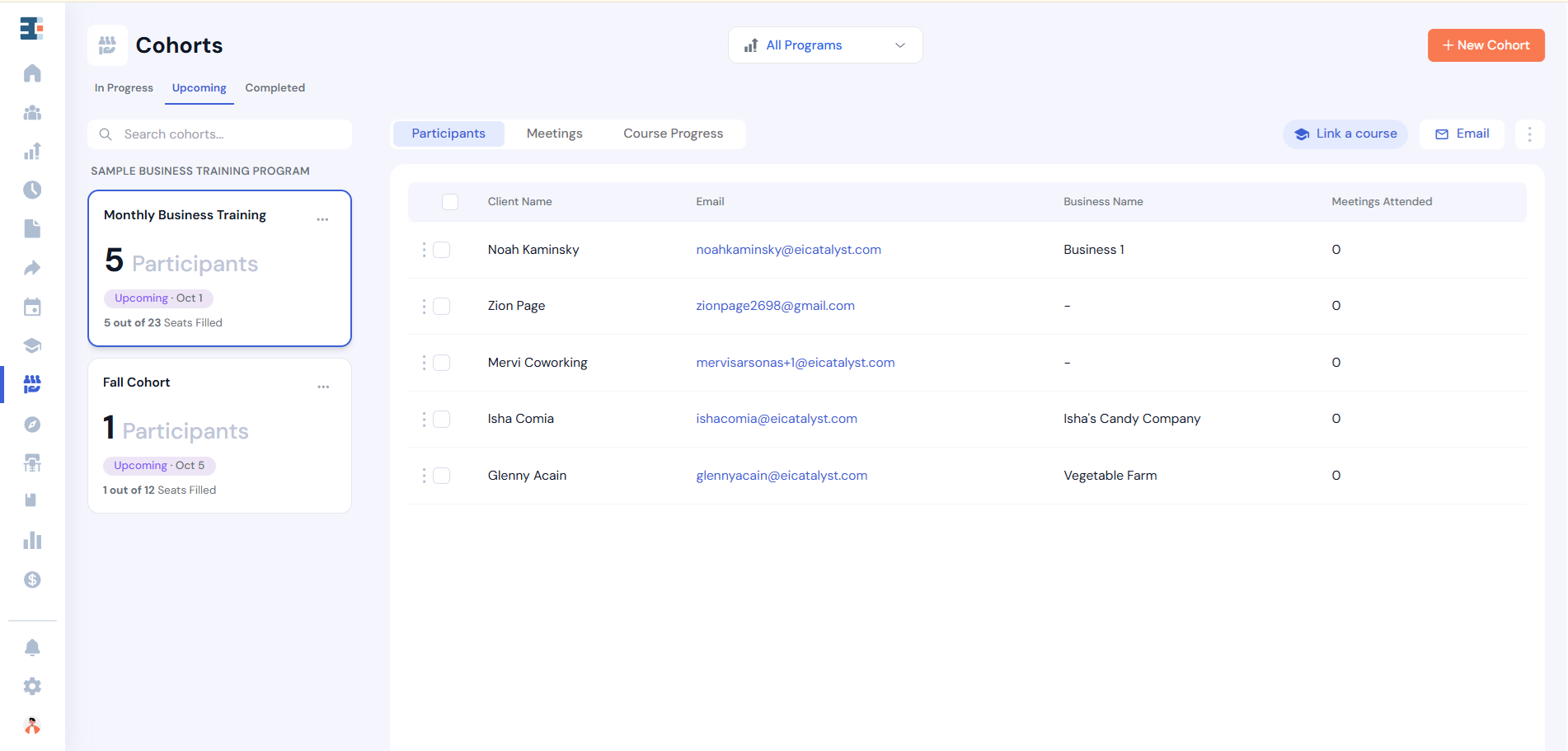
Linking a course to a cohort gives that cohort its own schedule for the material. This is where Courses earns its place in an accelerator-style program, and it's the part most often misread.
💡 An important rule in Catalyzer: a cohort's schedule is an overlay on the course. Editing the dates for Accelerate Tampa Spring 2026 leaves the course itself untouched, and the Fall 2026 cohort keeps its own dates. One course can be run by as many cohorts as you like, each on its own timeline. There is no reason to duplicate a course so a second cohort can start on a different date.
Release Dates and Overrides
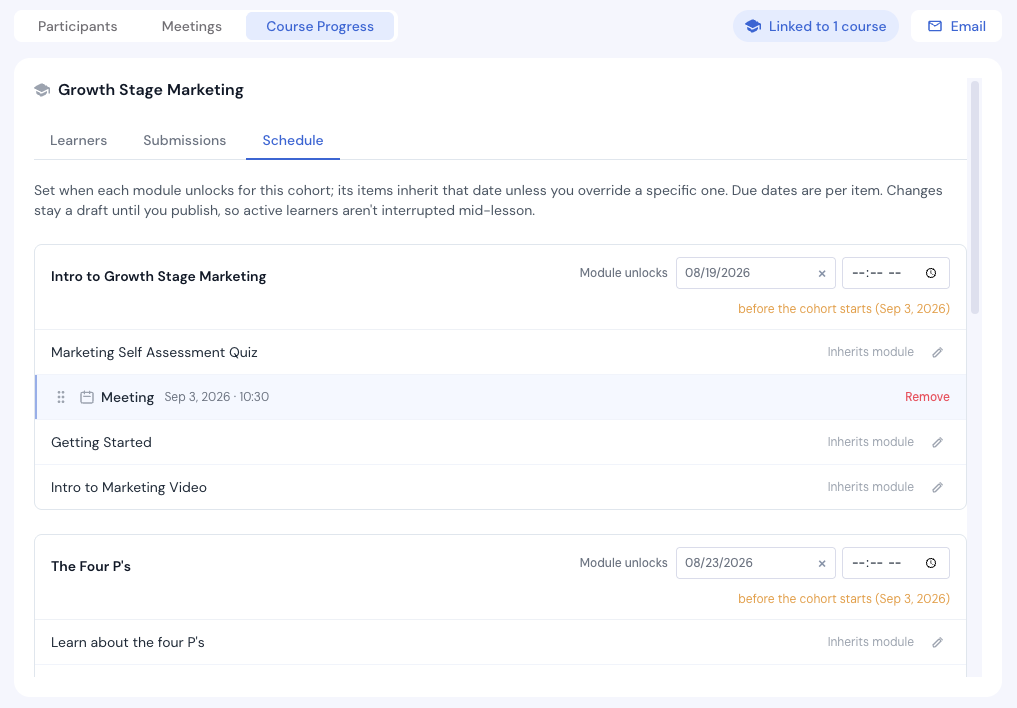
The schedule sets a release date for each module, which is the date its material opens to that cohort.
Individual content items can override their module. Each item is set to Open now, a Custom date, or With module, which inherits the module's release date. Precedence runs in that order: Open now beats a custom date, and a custom date beats inheriting the module.
Catalyzer warns you when the dates don't hold together, flagging a module that "Opens before an earlier module" and checking your dates against the cohort's own start and end.
Due Dates
💡 Release dates gate access. Due dates are advisory. A release date decides whether a learner can open an item at all. A due date tells them when it should be finished, and does nothing to stop them opening it early or turning it in late. When someone reports that a learner can't see content they should have, check the release date.
Cohort Meetings in the Flow
Cohort meetings can be placed into the course sequence, so the material and the calendar read as one thing. A learner sees Module 2, then the Week 3 session, then Module 3, rather than a course in one place and a meeting schedule in another.
Where Learners Work
Learners open content, take quizzes, submit assignments, and see their schedule in Startup Space, under Learning. Publishing a course in Catalyzer will not produce a learner view inside Catalyzer, and that isn't a fault. The Startup Space knowledge base documents what learners see.
What's Next
Read Cohorts for how cohorts are built and how attendance is recorded, since a cohort is what gives a course its schedule and its roster grouping.